How to Perform a Factory Reset
on Your VUEROID Dash Cam
While various factors may contribute to unexpected behavior, a Factory Reset can resolve most software-related issues by restoring the device to its default settings.
Follow the steps below to perform a Factory Reset on your VUEROID dash cam.
Method 1: When a Forced Factory Reset Is Required
Use this method if you cannot access the Settings menu.
1. Power off the device
2. Hold the Settings (Back) and Wi-Fi buttons while powering on the device.
3. Continue holding both buttons until the Initialization Menu appears.
4. Select Factory Reset.
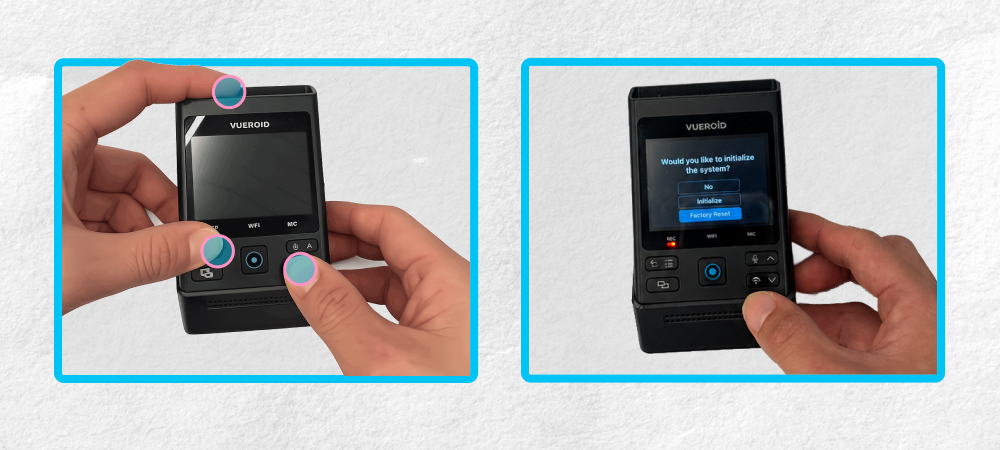
Method 2: Factory Reset via the Settings Menu
Navigate to:
Settings (Back) → System → Initialization → Factory Reset
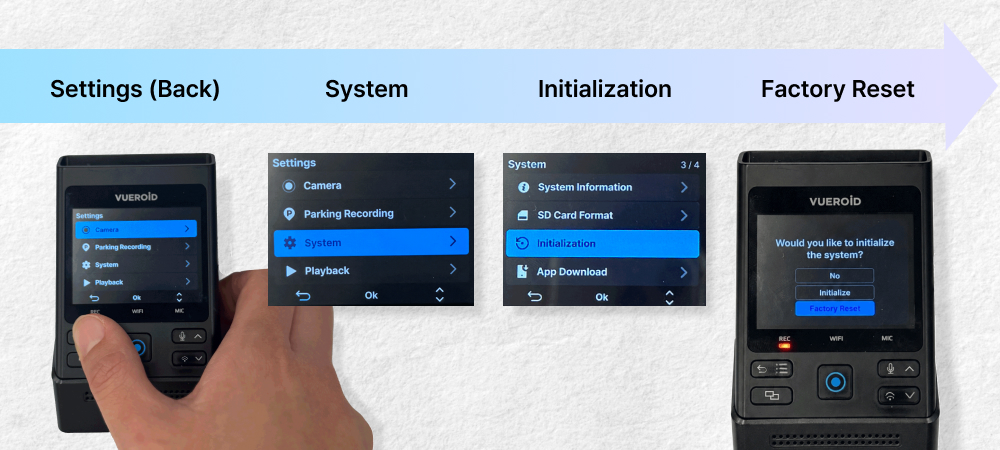
After the Factory Reset
After completing the Factory Reset, format the SD card using an external device such as a PC (any file system format is acceptable).
Once you reinsert the SD card into your VUEROID S1 Infinite, the dash cam will automatically format the card and reinstall the proprietary TFF (Three Free File System).
After formatting is complete and recording begins, leave the device powered on continuously for 1–2 minutes to ensure the initialization process is completed properly.