S1 4K Infinite 1 CH [with Option]
$309.99

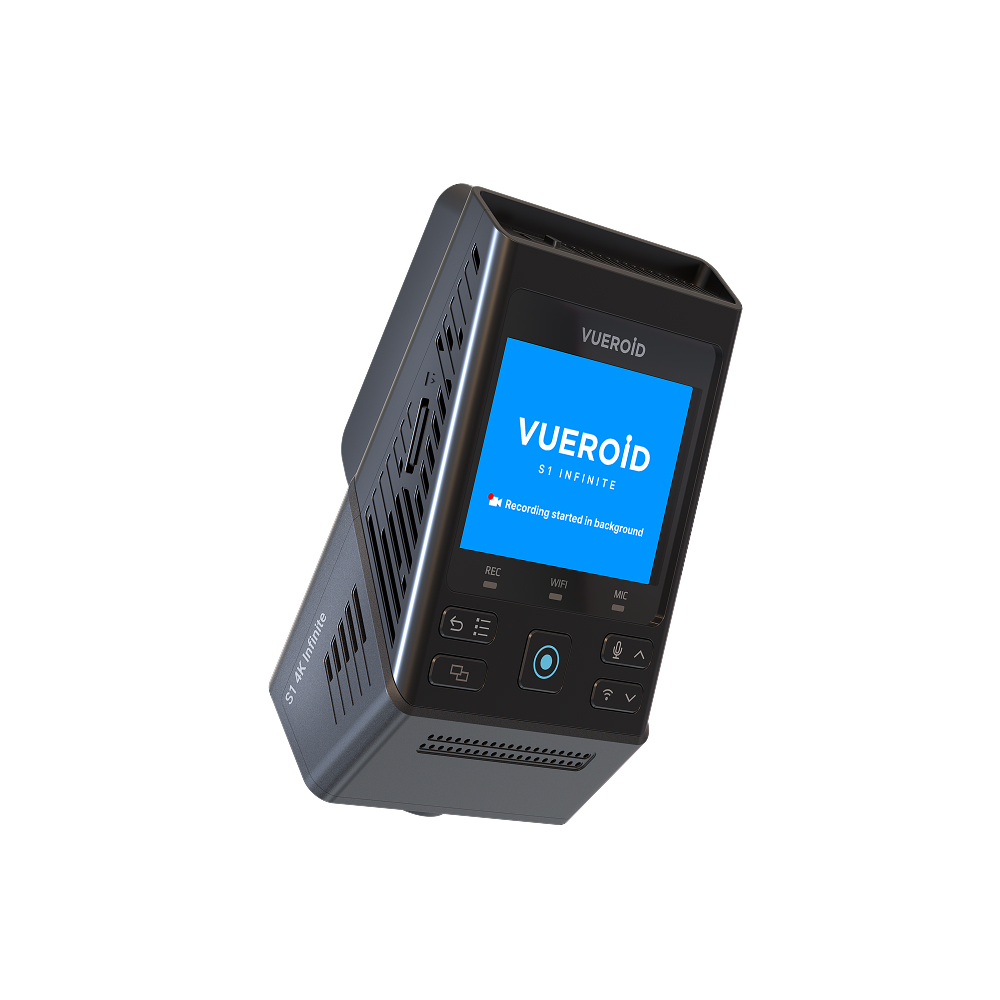
VUEROID S1 4K Infinite 1 Channel Dash Cam, Sony STARVIS 2, Night Vision, 5GHz Wi-Fi, GPS, 24/7 Parking Mode
$309.99
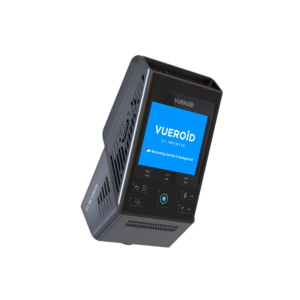
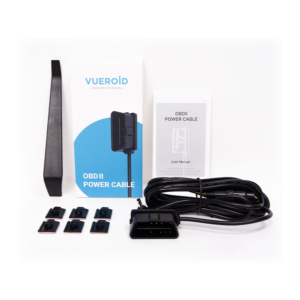
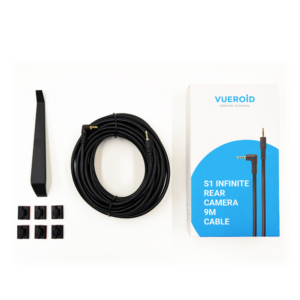
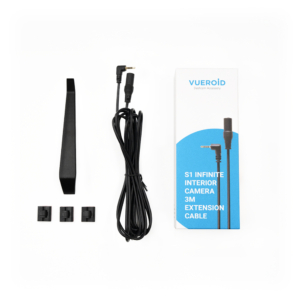
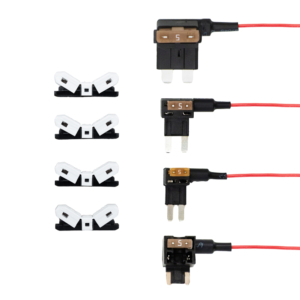
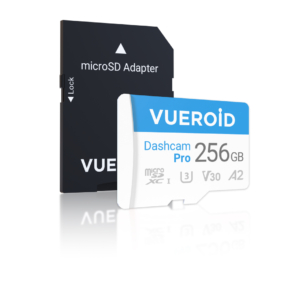
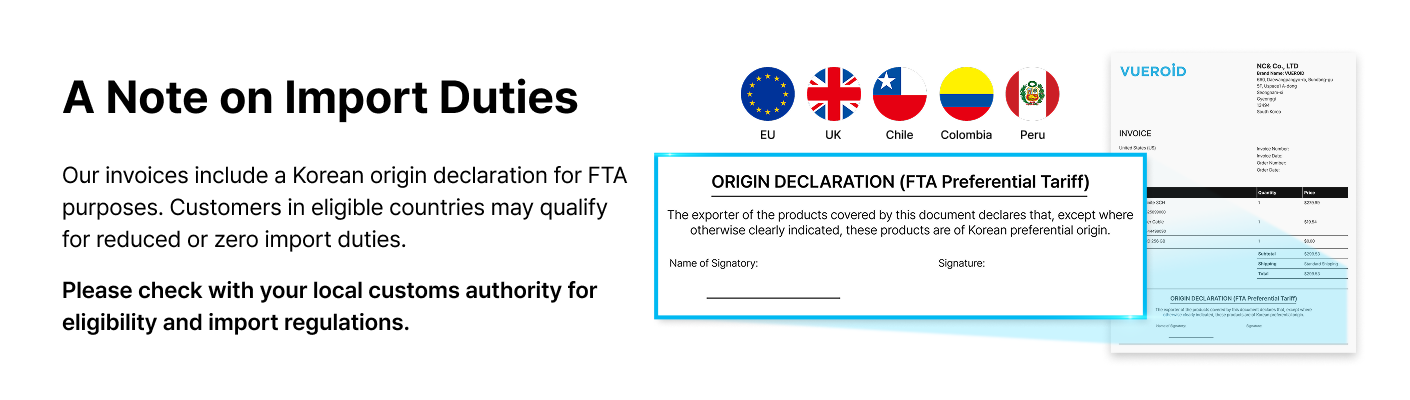
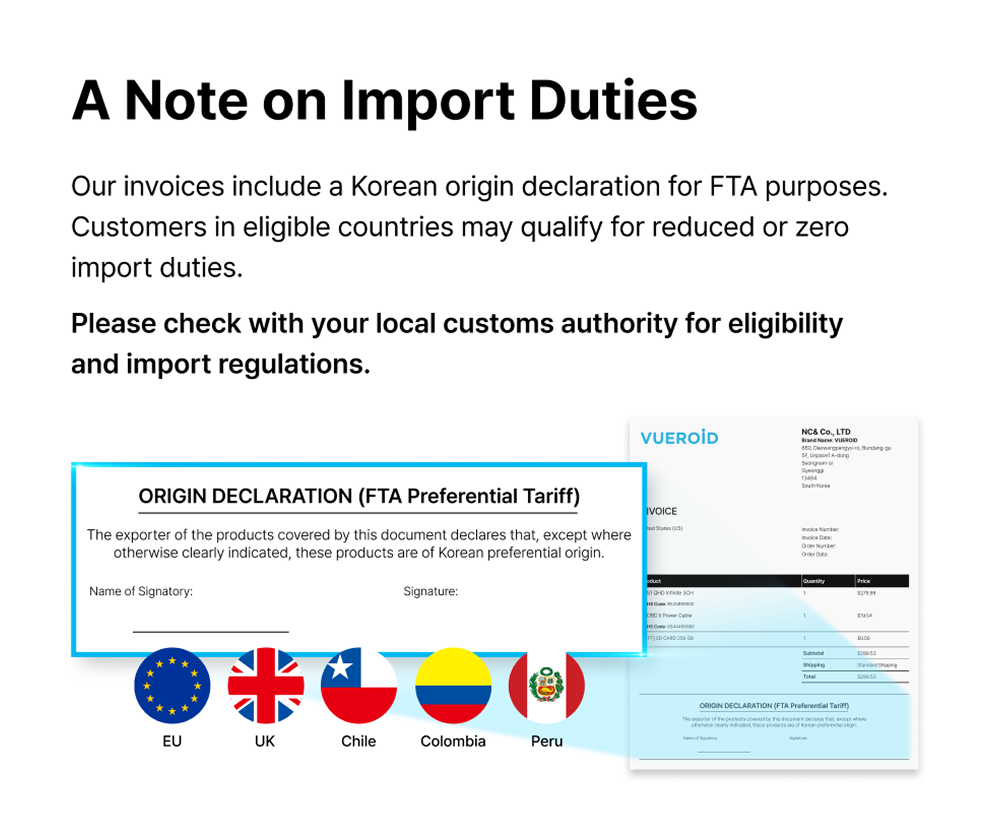
 Where Brilliance Meets Basics.
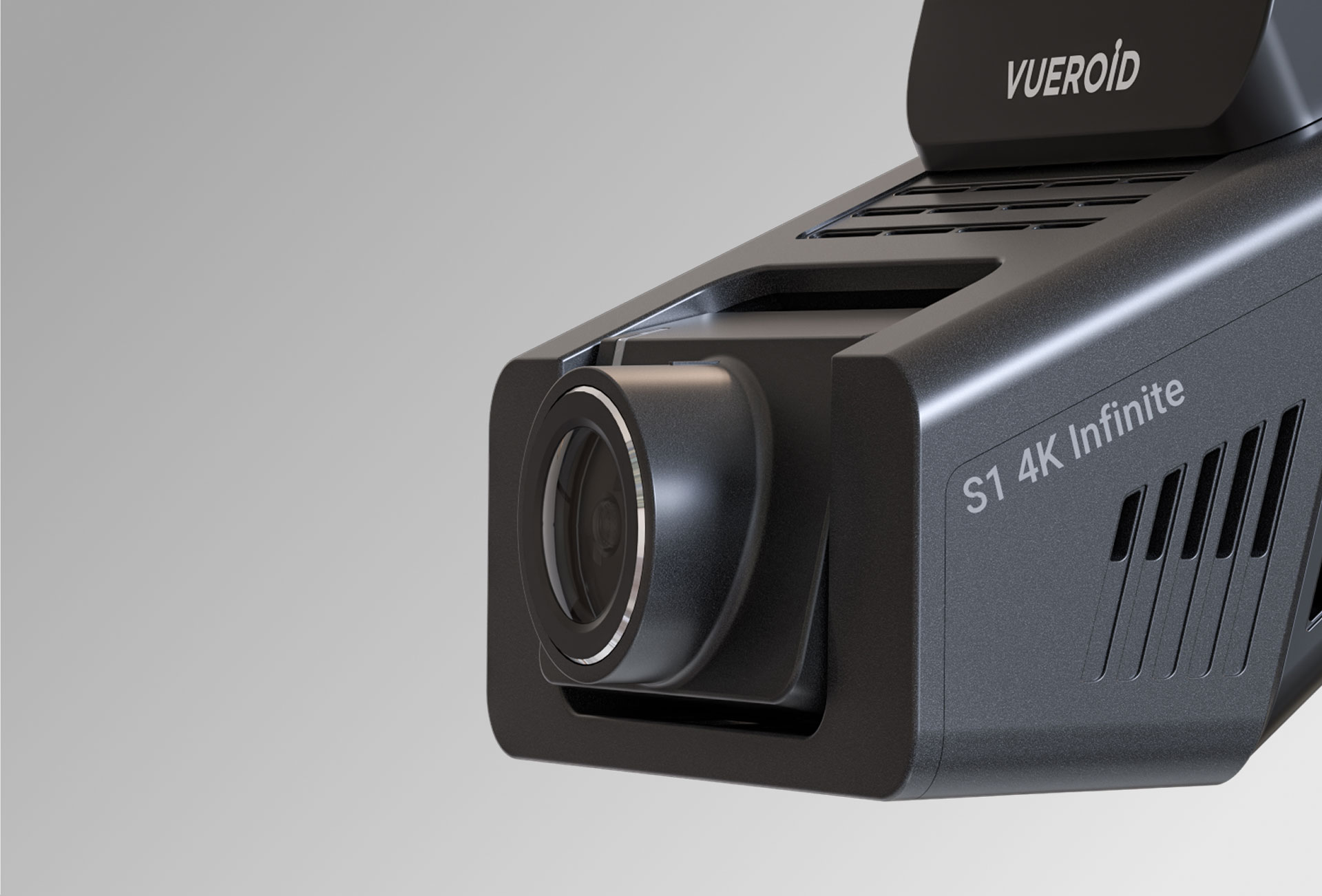
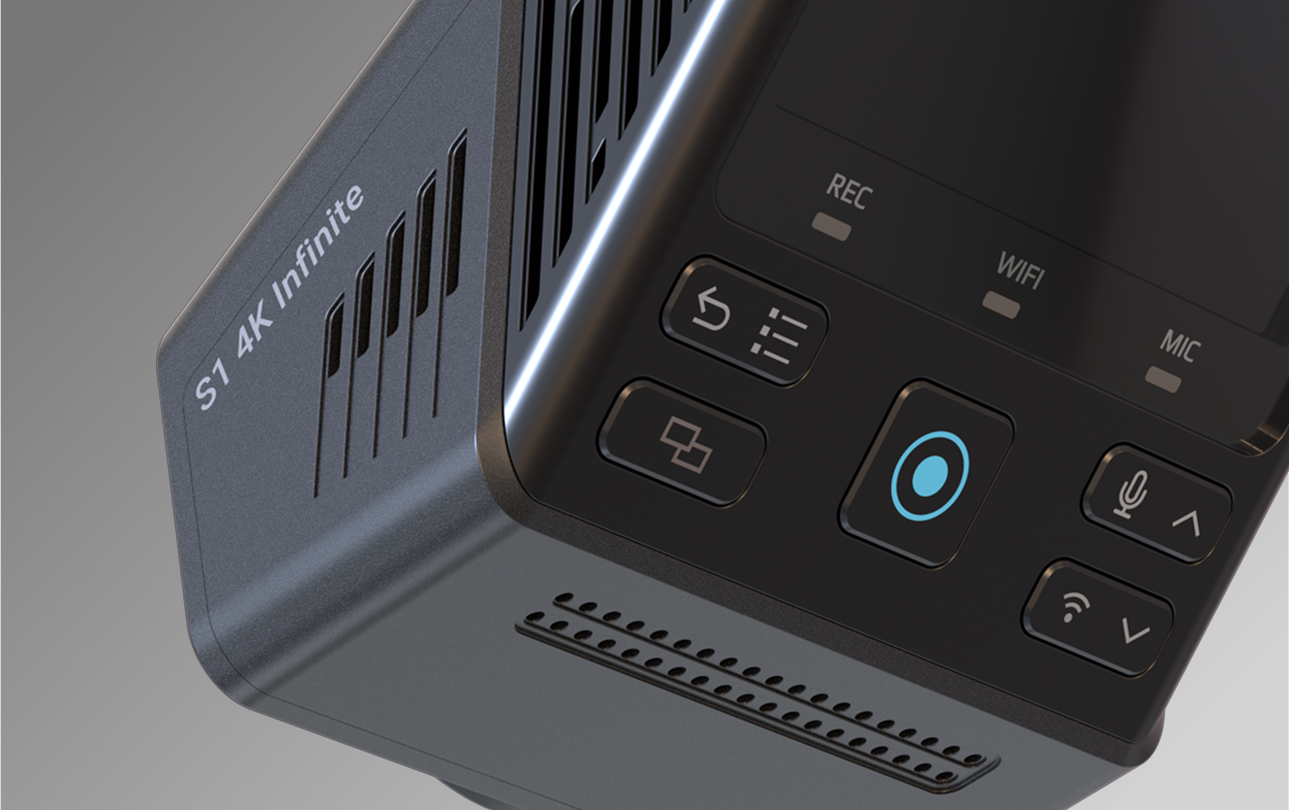
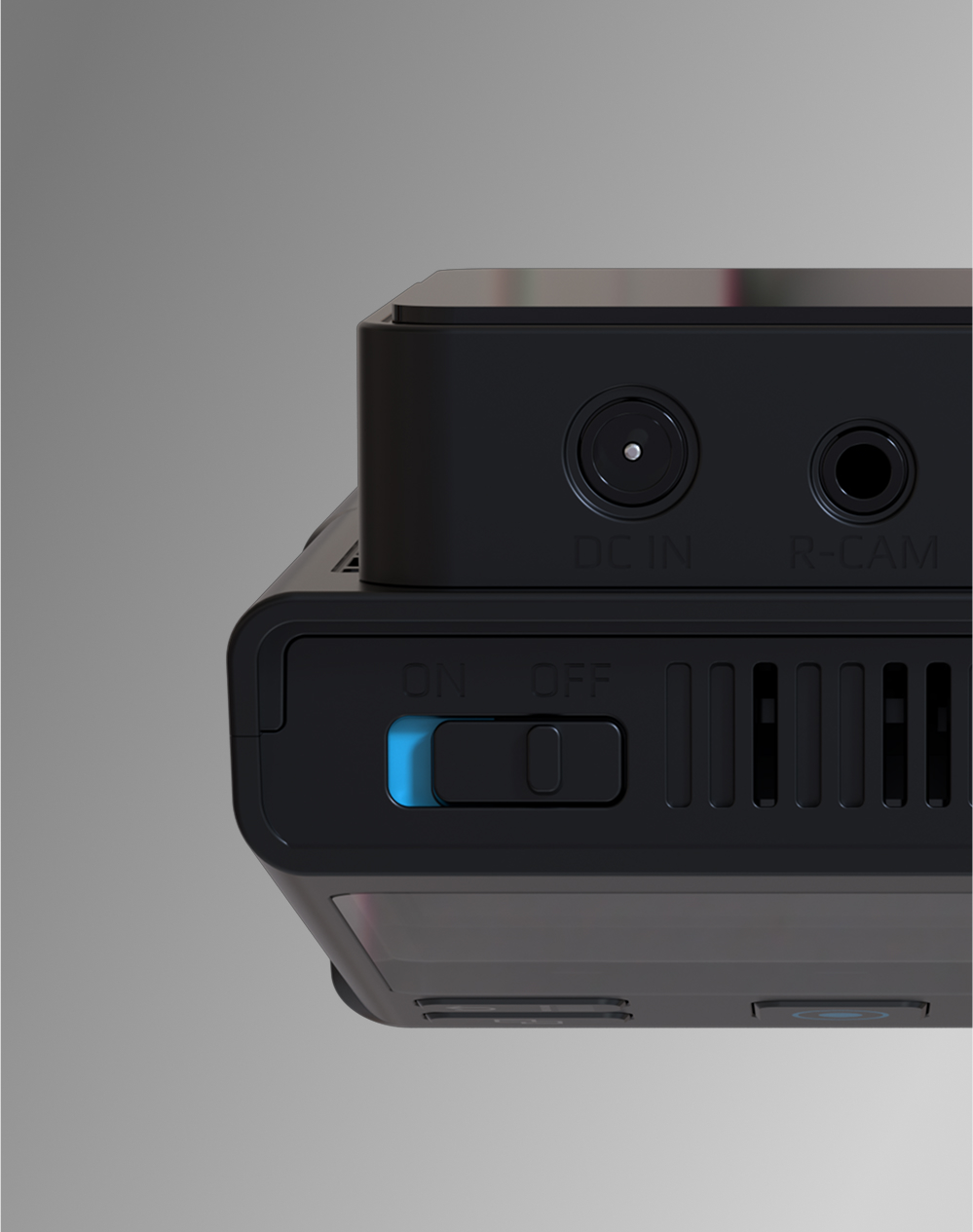
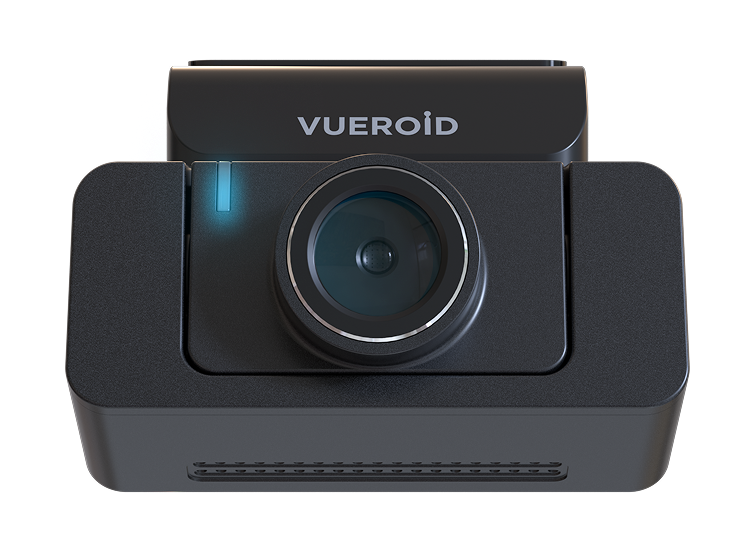
VUEROID, equipped with proprietary patented Image Signal Processing & Tuning technology, delivers exceptional clarity in every driving condition, redefining your on-road experience.
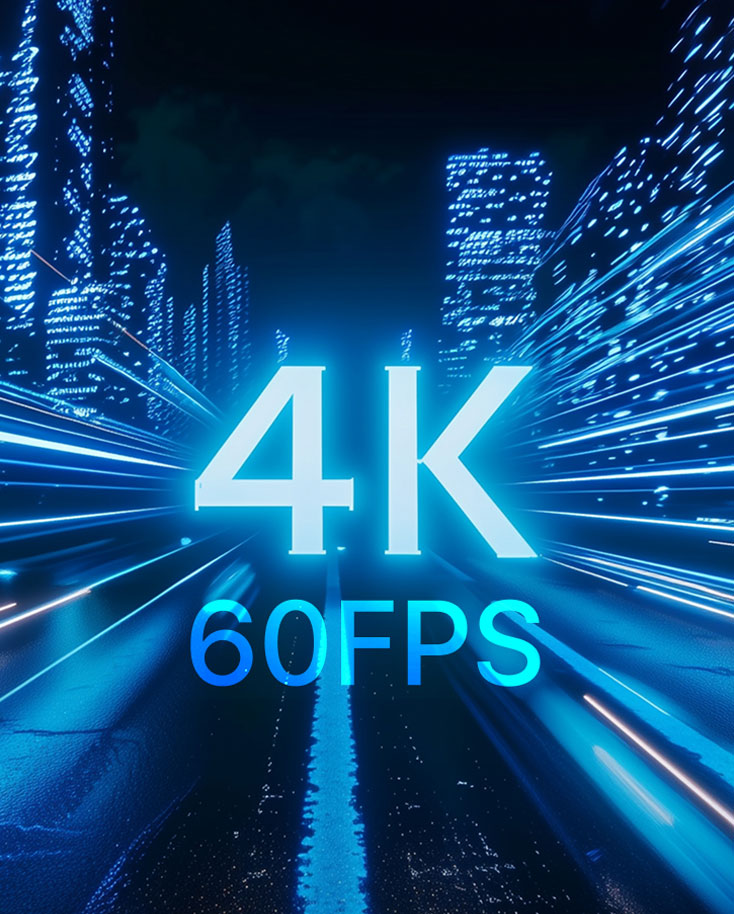
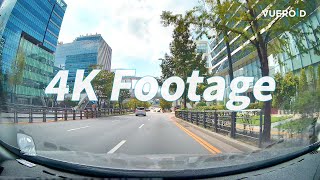
Combining 4K 60FPS with a wide-angle view ensures sharp, detailed recordings while capturing the full context of every scene.
**NOTE:

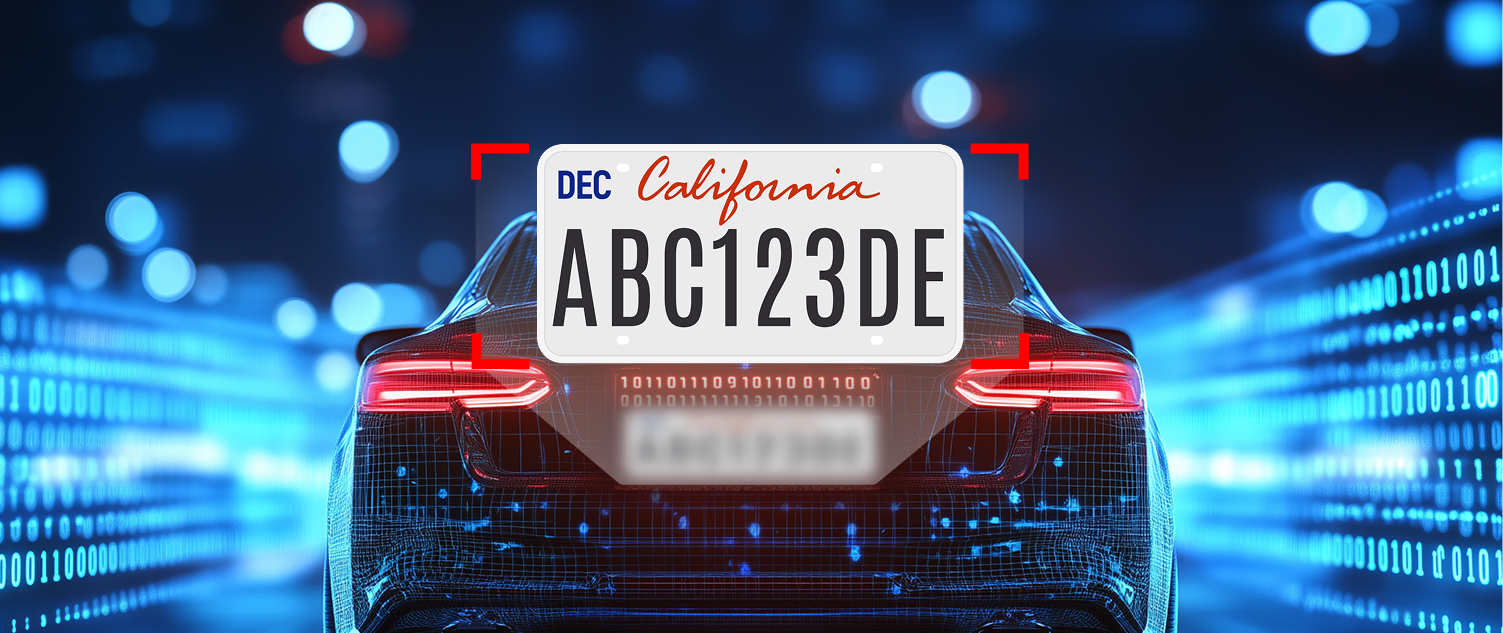

AI License Plate Restoration enhances blurry or degraded license plate, making them clear and easy to recognize.
AI Privacy Protection automatically blurs personal information, such as vehicle license plates and the faces of pedestrians or drivers, to protect privacy in the recorded footage.












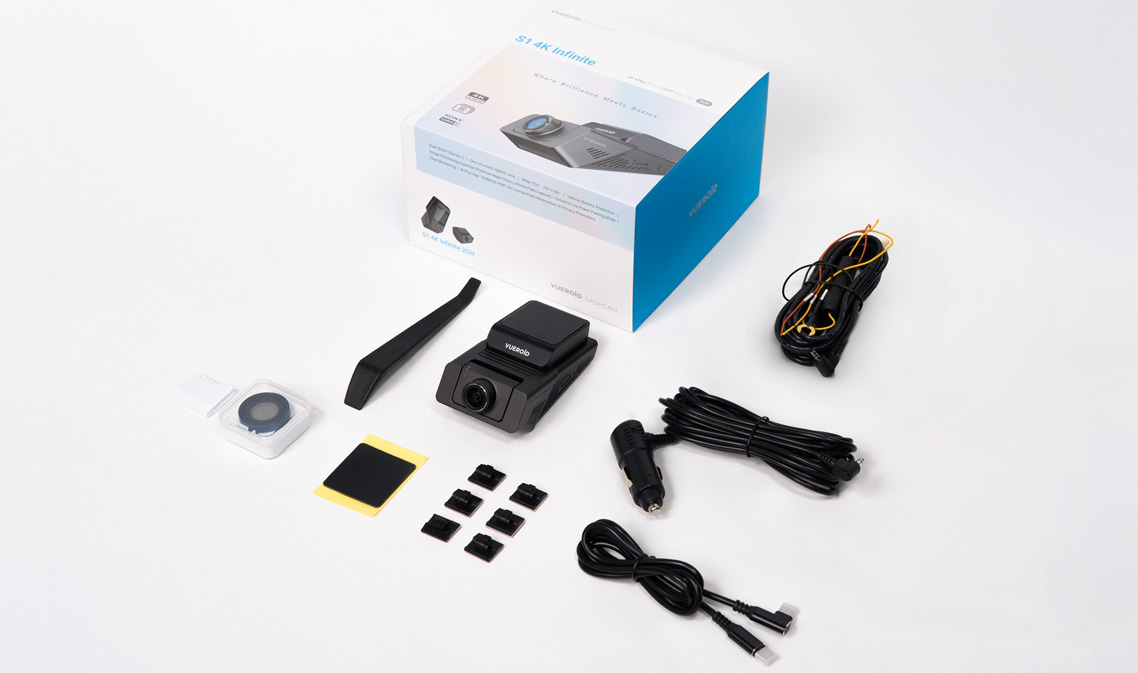
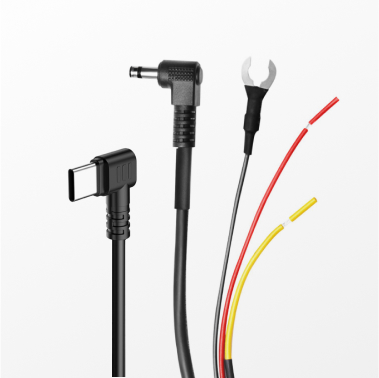
Front Camera • Hardwire Power Cable 3M • Cigar Jack Cable • USB 2.0 C-Type Data Cable • Cable Clip 6EA Trim • Tool • Foam Tape (2EA) • CPL Filter • User Manual
| List | Specification |
| Channels | 1CH |
| Image Sensor | Front Camera: SONY Starvis2 (IMX678) |
| Resolutions | Front Camera: UHD (3,840 x 2,160) @ 30fps (Max. 60fps) |
| FOV | Front Camera: 151° |
| Image Mode | HDR, Infinite Plate Capture Mode, Premium Night Vision Mode |
| GPS | Built-in |
| Wi-Fi | Built-in |
| LCD | 2.3" |
| Power | 12V, 5V(USB-C) |
| TFF (Three Free File) System | O (Super Capacitor Not Necessary) |
| SD Card Compatibility | Up to 512GB (Recommended to use 256GB or larger) |
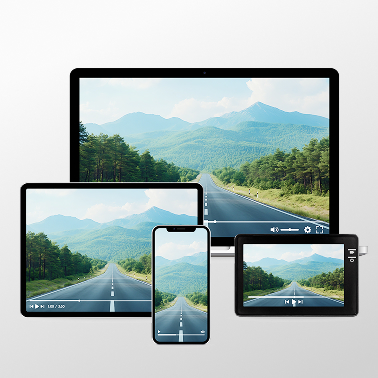
| Data Transfer | SD Card, Vueroid HUB App, PC Viewer & USB Mode |
| AI Functionalities | AI License Plate Restoration & Privacy Protection via HUB App or PC Viewer |
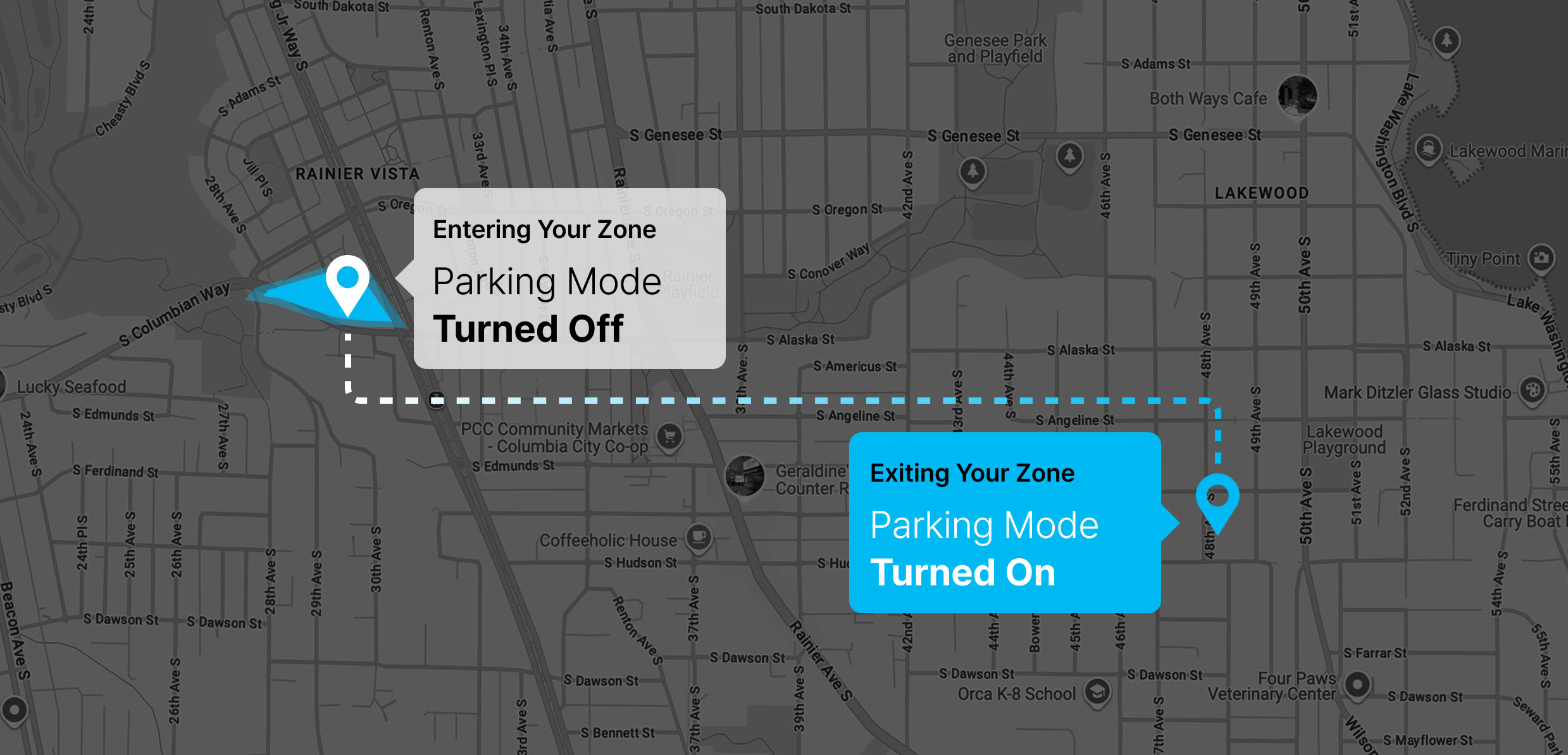
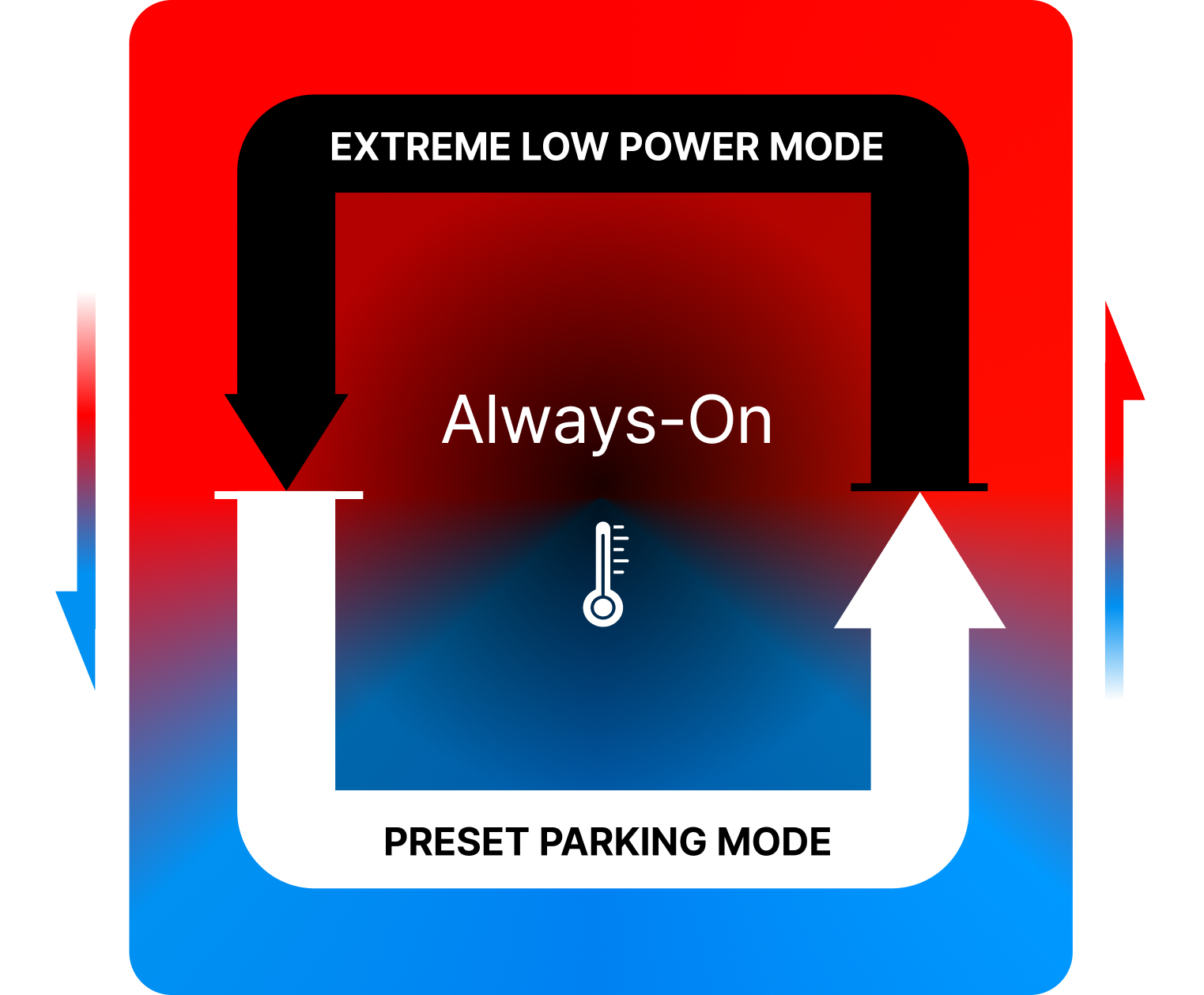
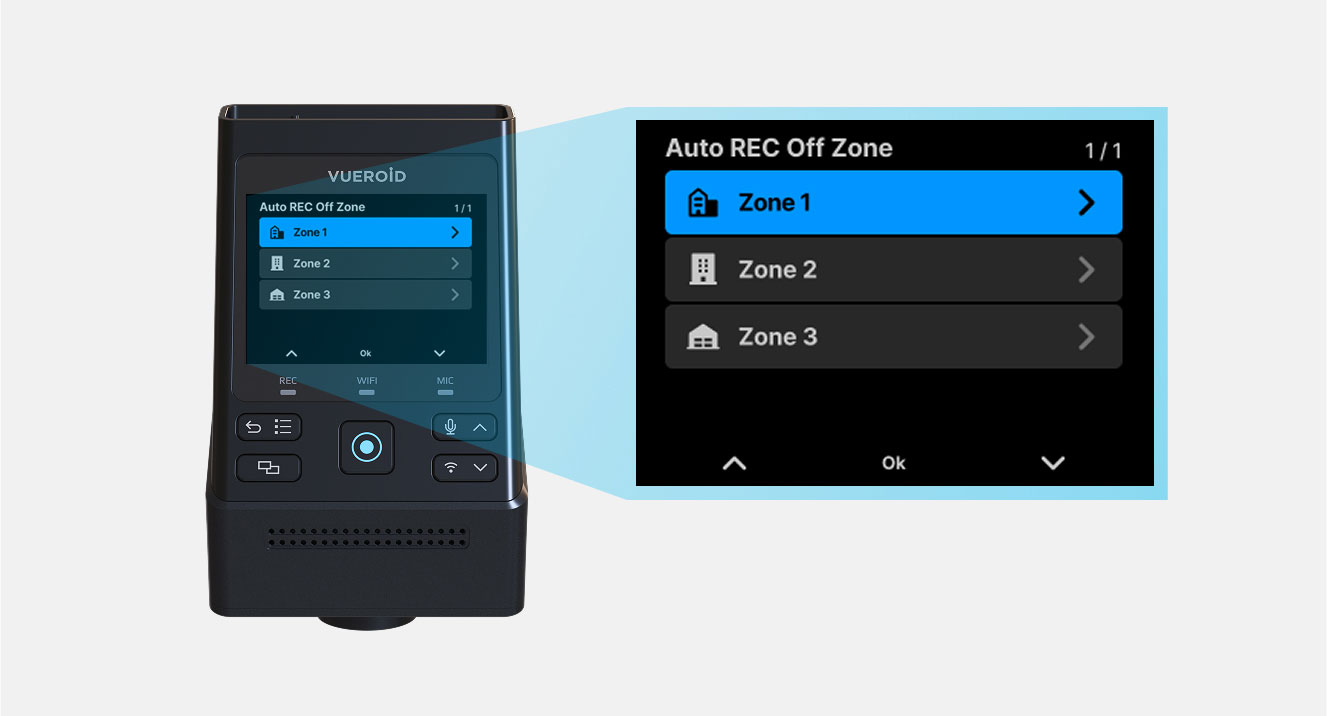
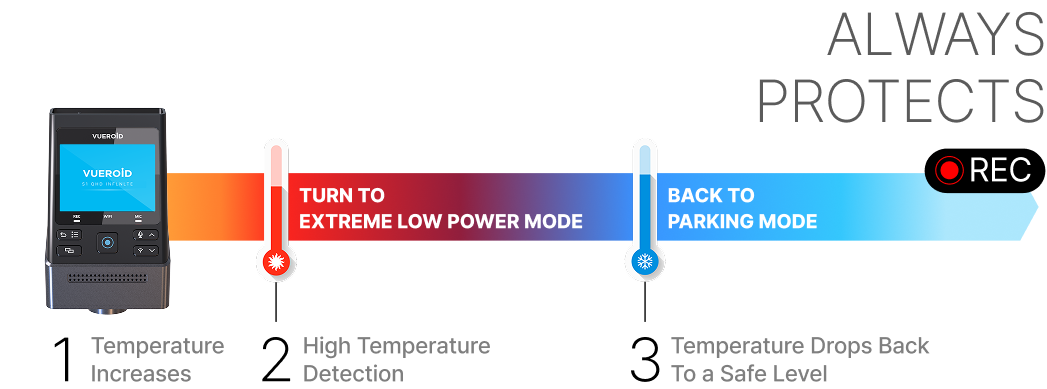
| Parking Mode | Extreme Low Power Mode, Impact&Motion, Impact&Timelapse, Auto REC Off Zone mode, Durashift Parking Mode (Hardwire Cable is included) |
| Safety Features | Battery Protection Mode (Battery Cut-Off Voltage & Time) |
| Operating Temperature | -20℃ ~ 65℃ (-4℉ ~ 149℉) |
| Storage Temperature | -20℃ ~ 70℃ (-4℉ ~ 158℉) |
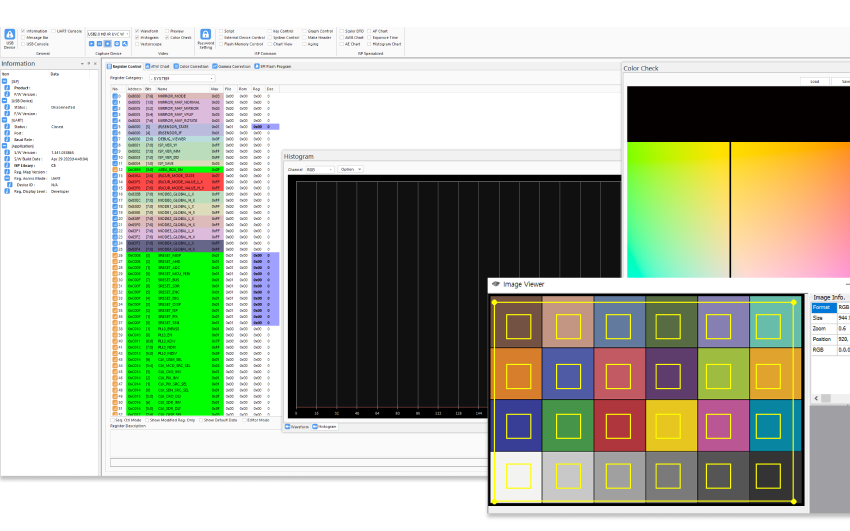
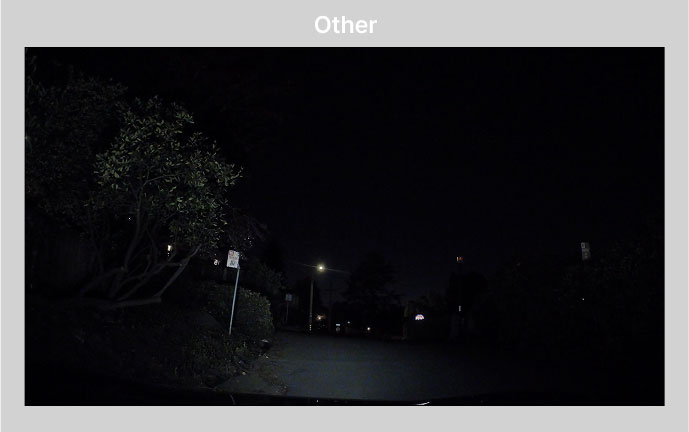
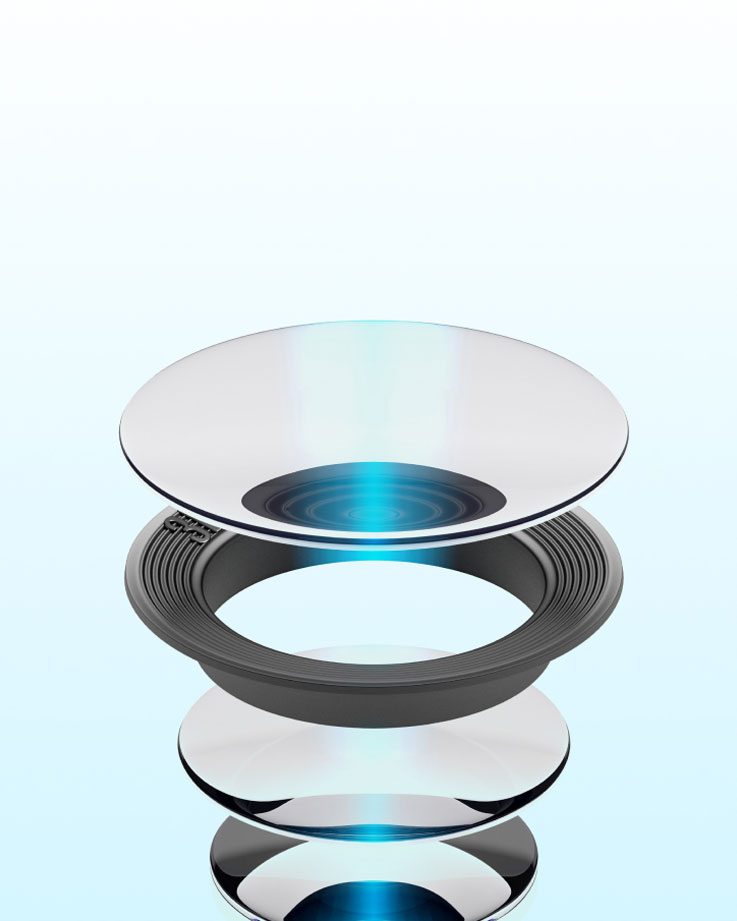
With our proprietary VUEROID Sight Matrix tuning technology, S1 4K unleashes the full potential of the Sony STARVIS 2 image sensor. This exclusive synergy brings out stunning detail, natural color tones, and ultra-low noise—even in the darkest environments.
The maturity of image quality, refined through nearly 30 years of expertise, makes a significant difference, setting the Vueroid S1 Infinite family apart from the competition.

Capturing fine details in the dark.
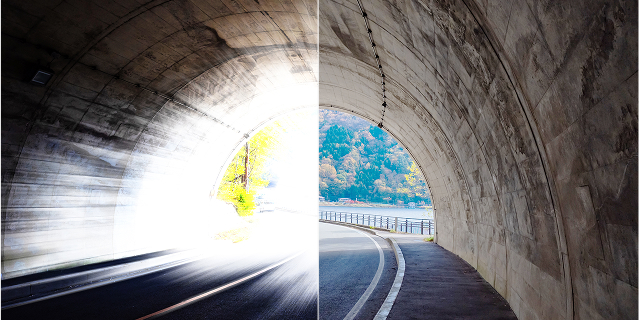
Balancing highlights and shadows seamlessly.
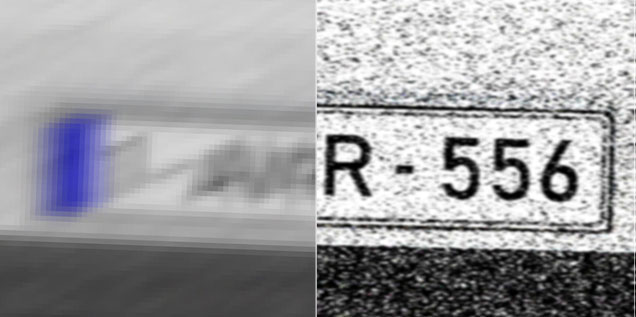
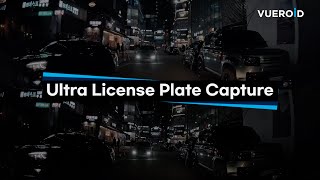
Making critical details like license plates stand out.

Preserving natural tones for accurate evidence.
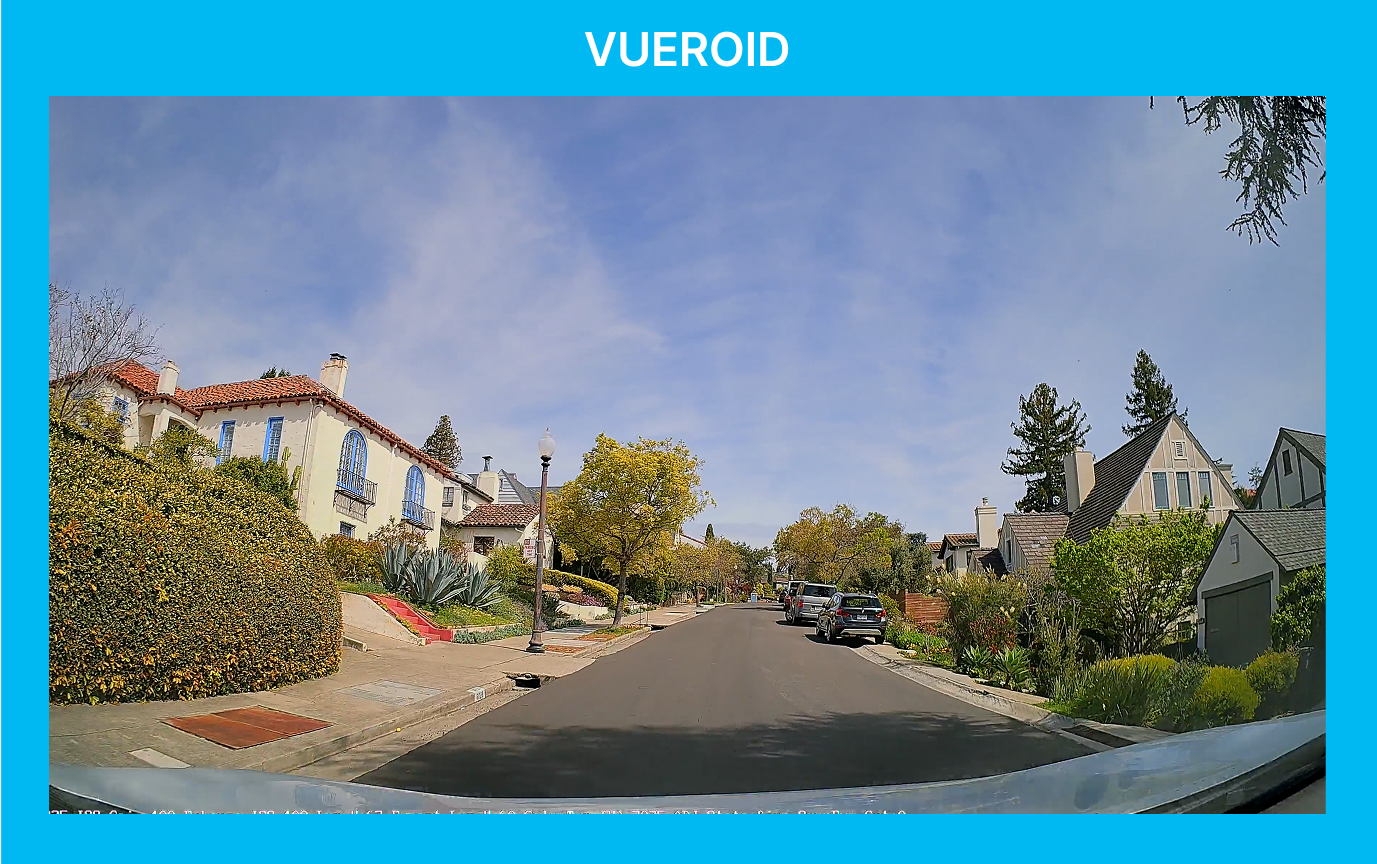
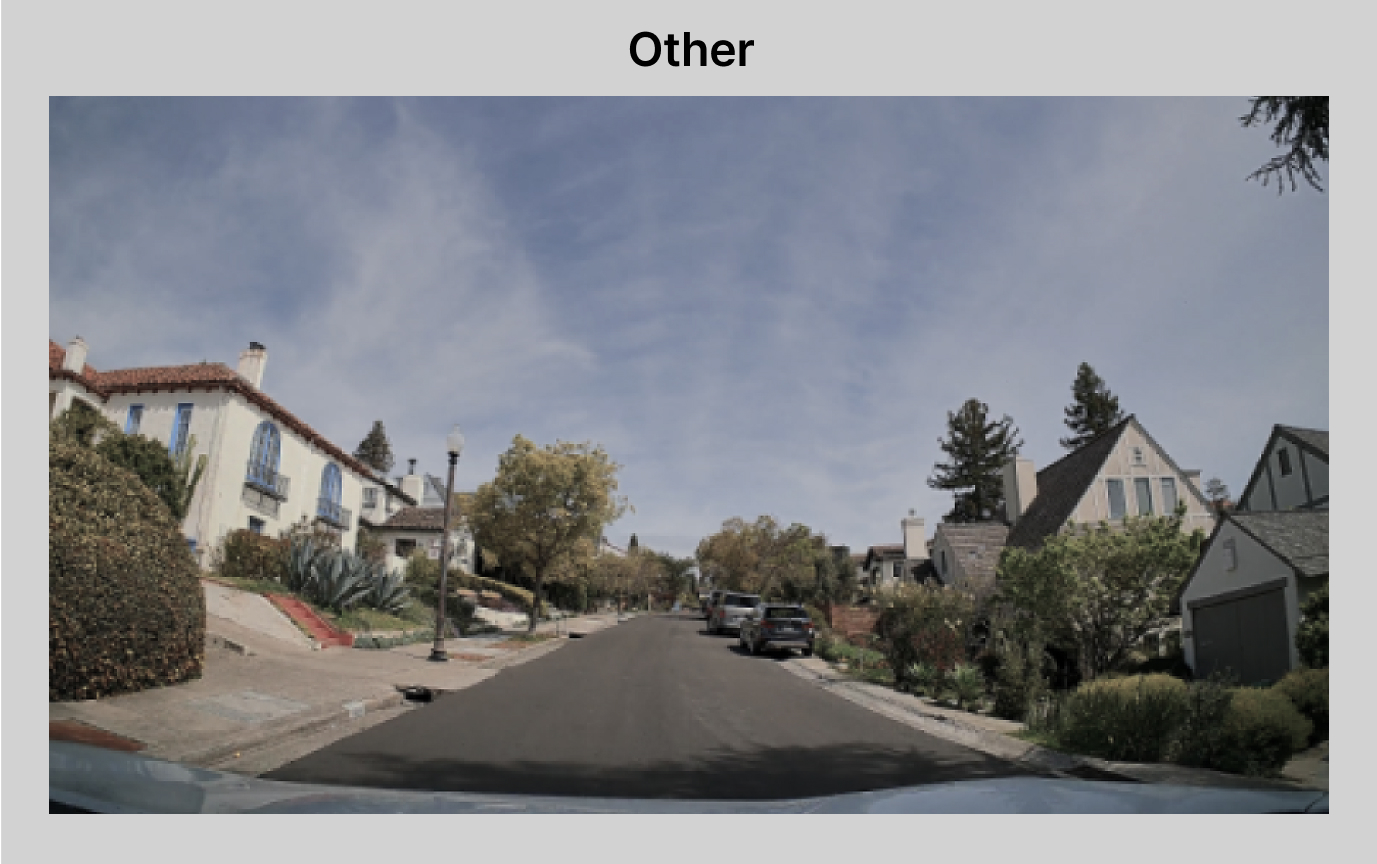
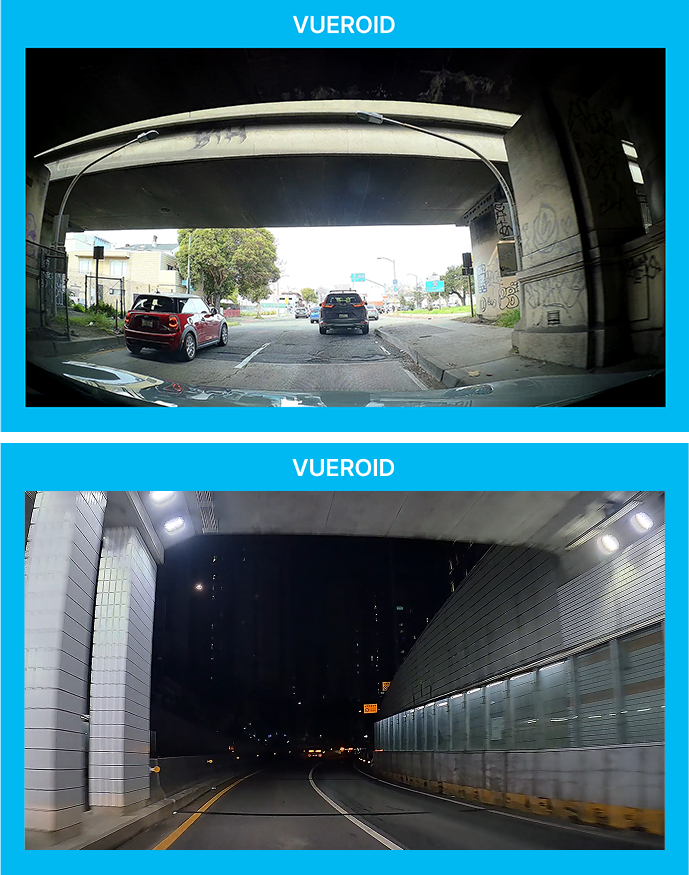
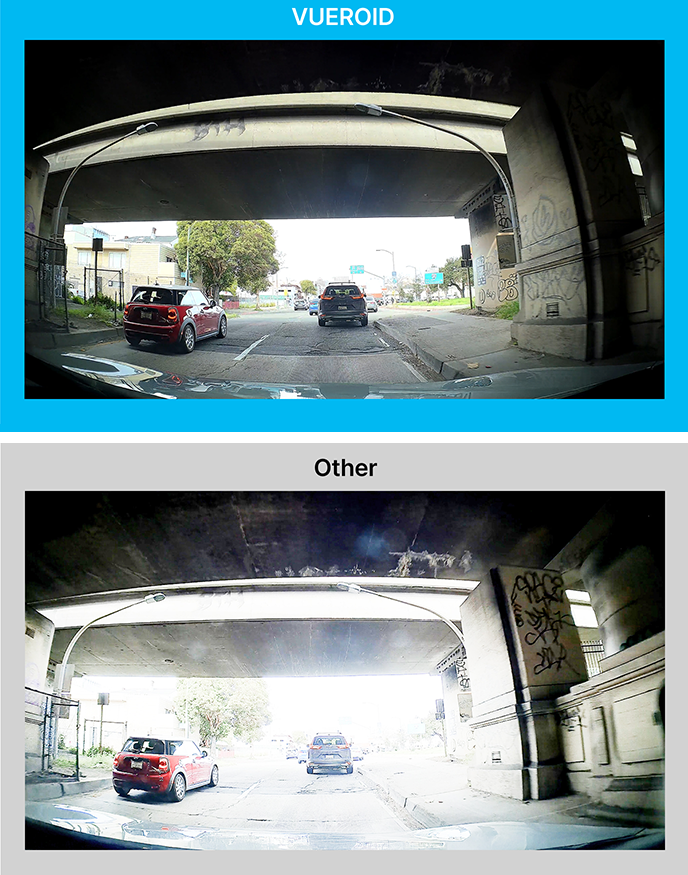
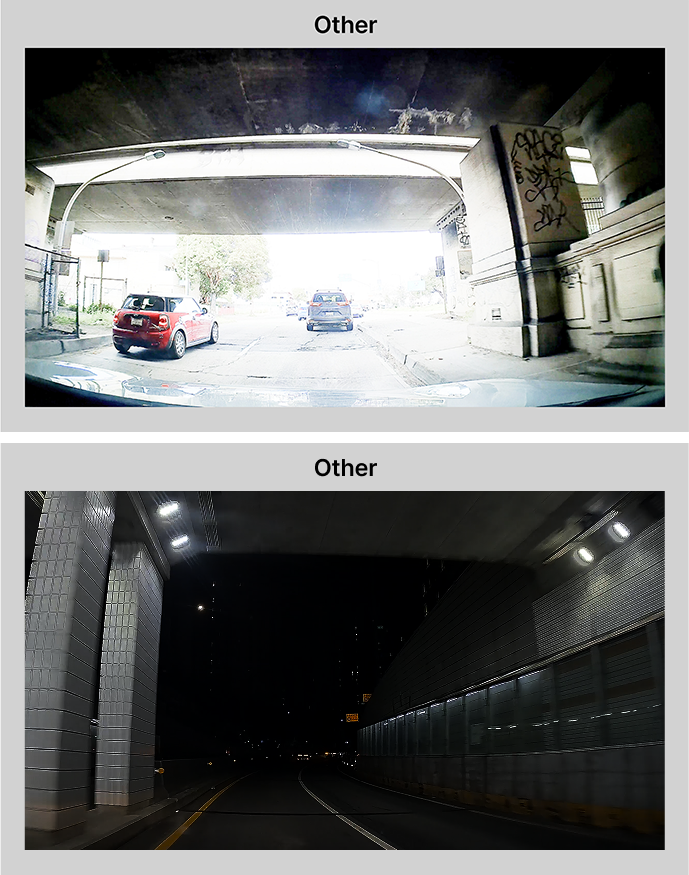
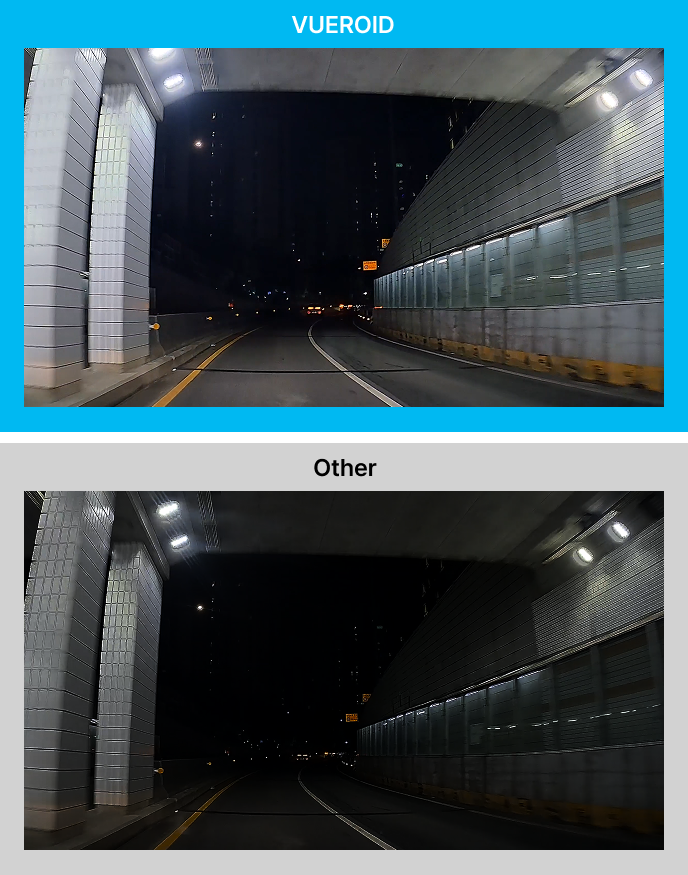
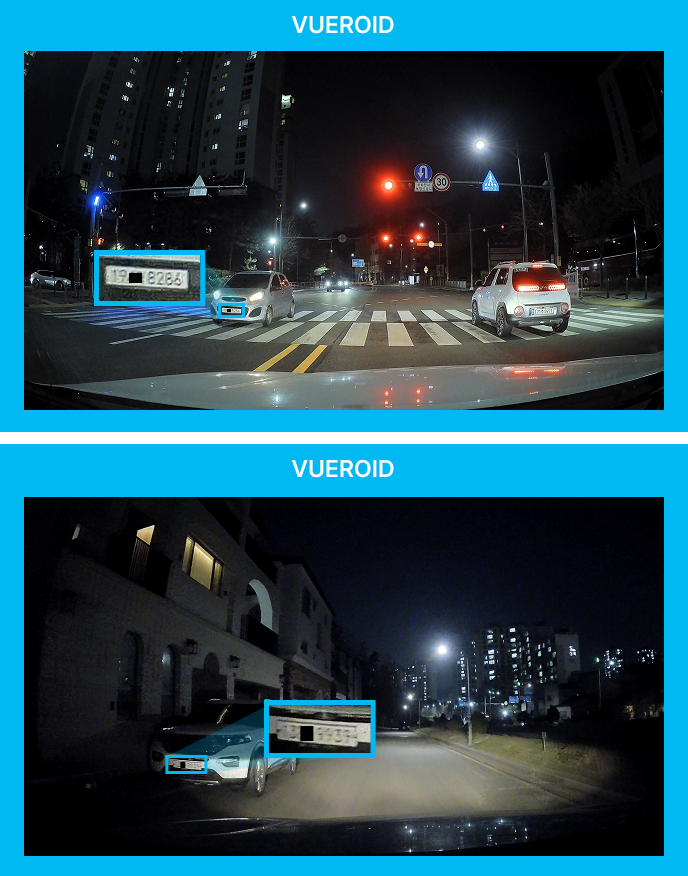
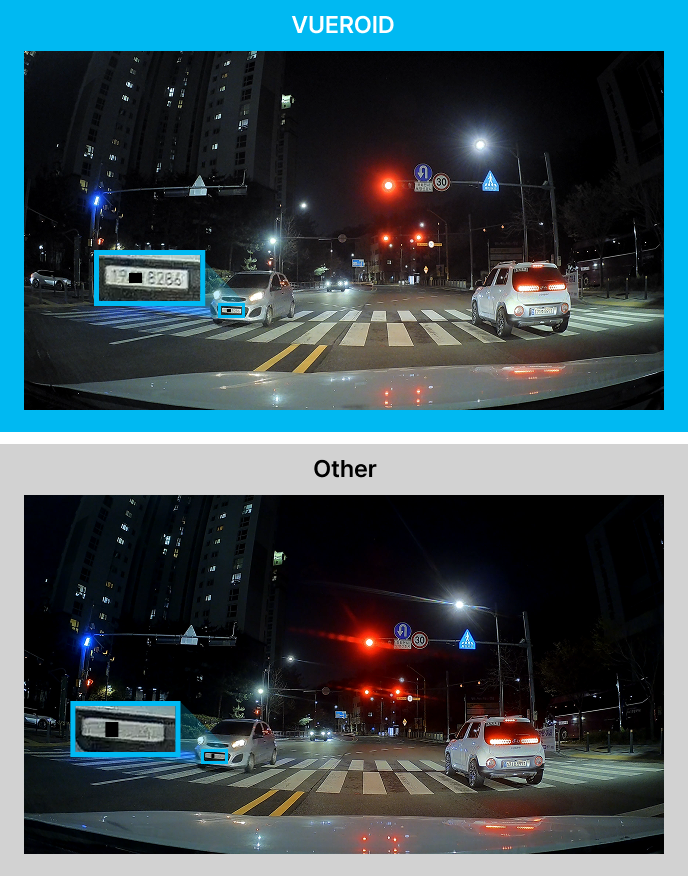
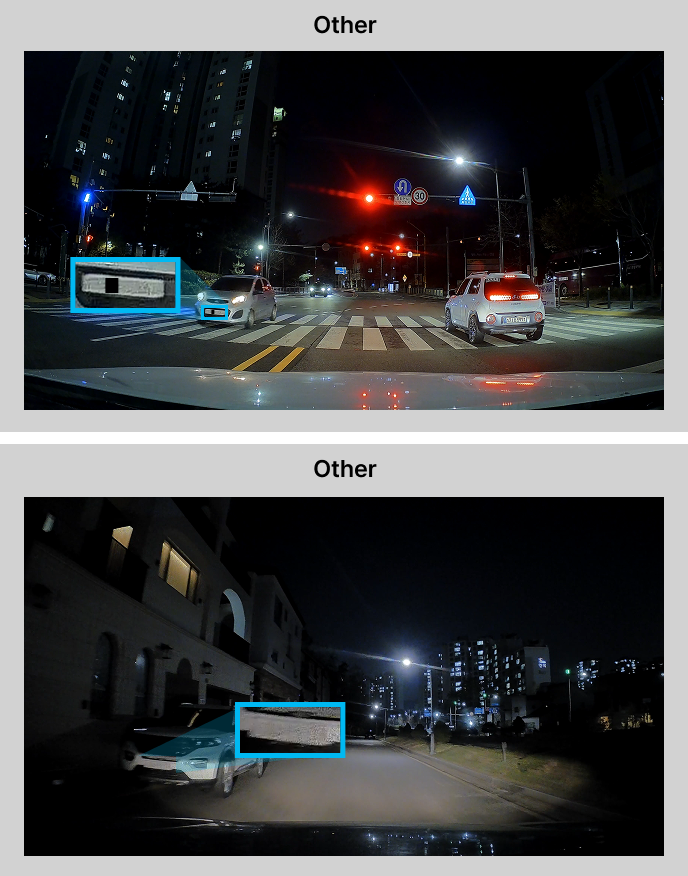
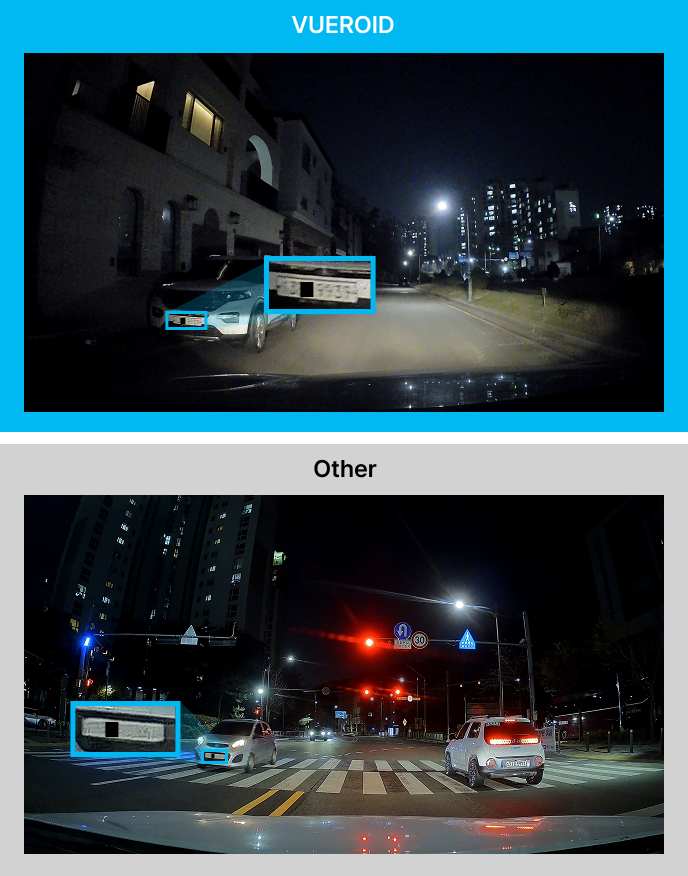
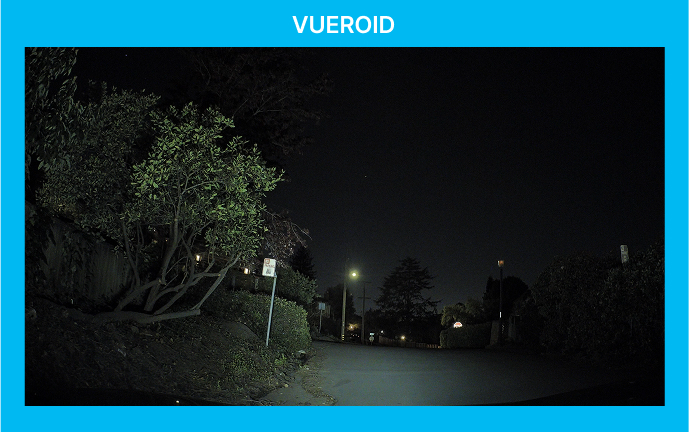
*Premium Night Vision(PVN) is only supported in Parking Mode.
+

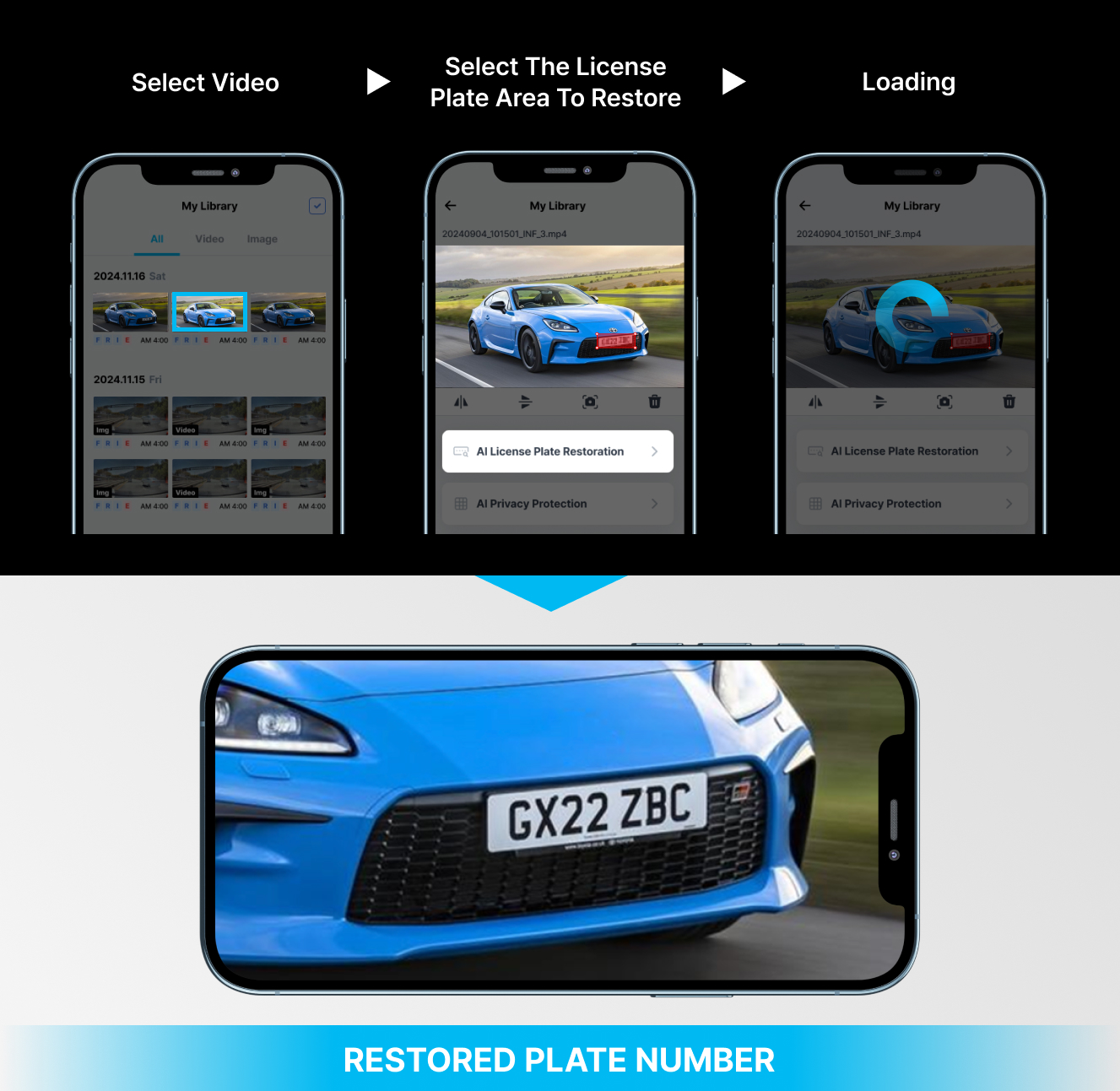
*The image above is for illustrative purposes only and may differ from the actual app interface.
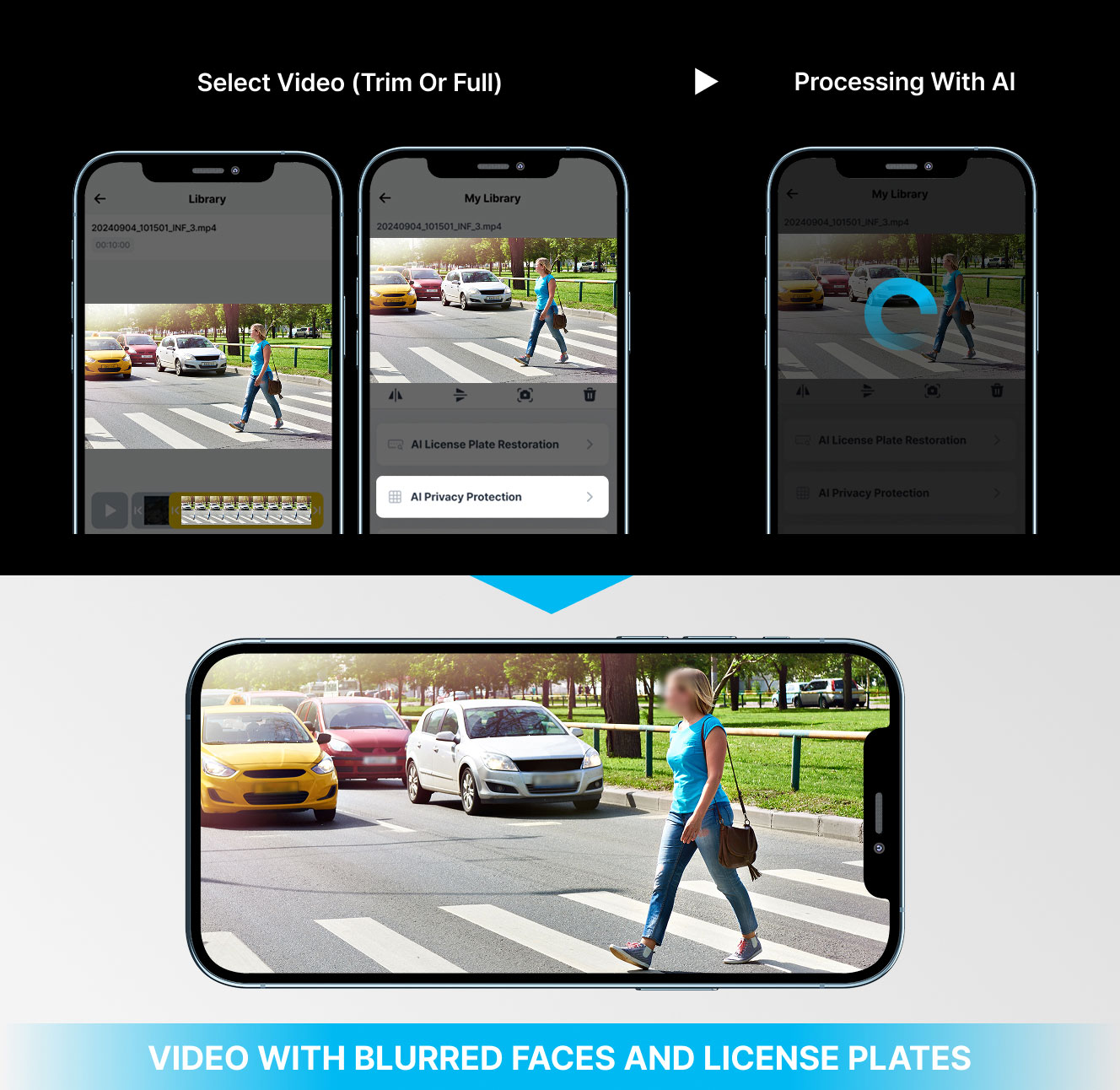
*The image above is for illustrative purposes only and may differ from the actual app interface.
+
See what happens when image tuning meets engineering excellence.
No exaggeration—just pure visual accuracy.




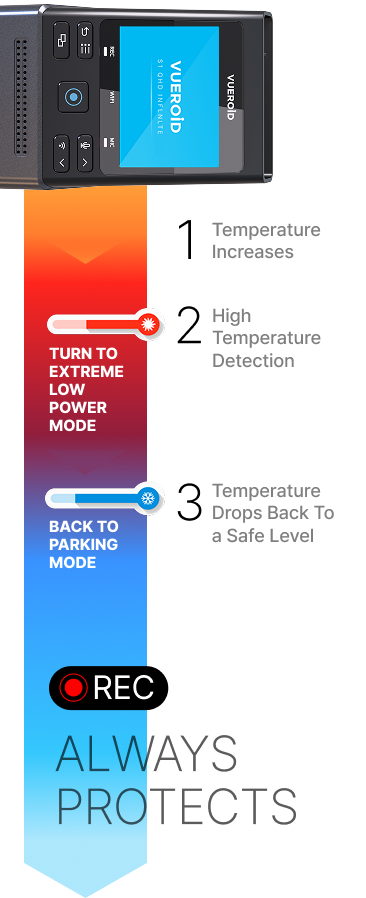
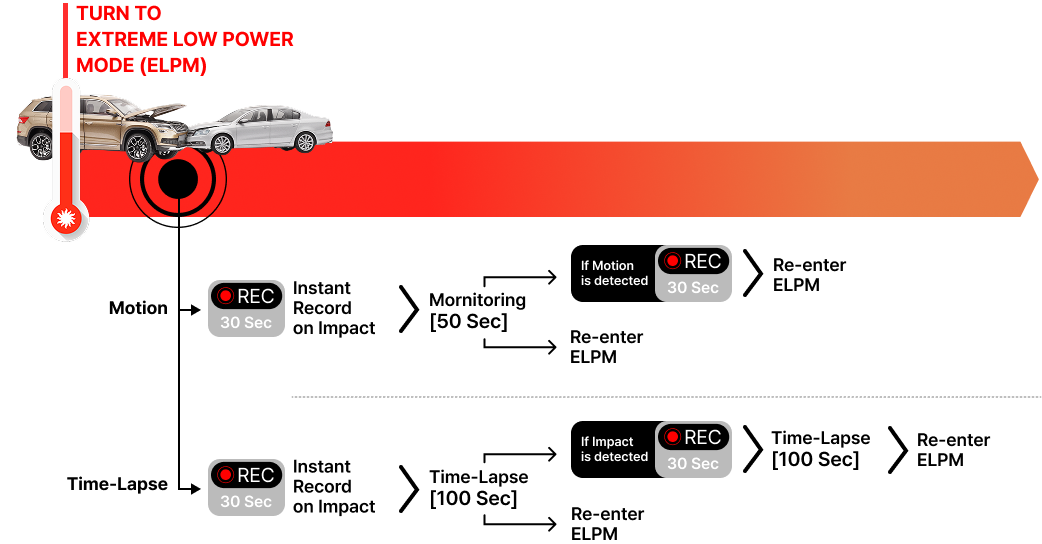
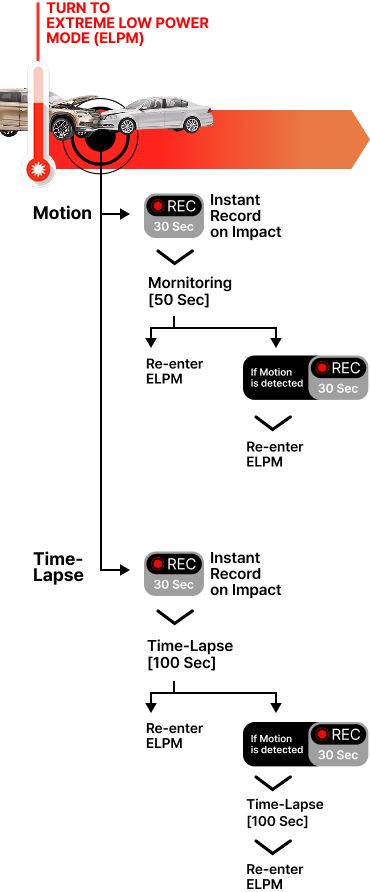
+
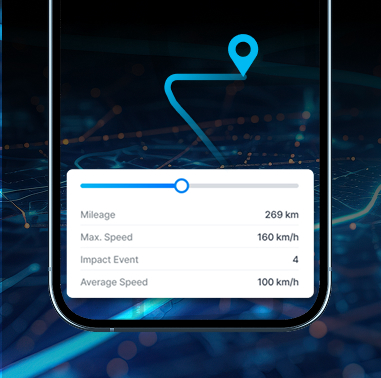
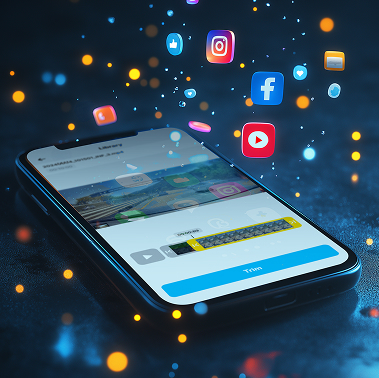
Q. Are there any settings to prevent vehicle battery discharge?
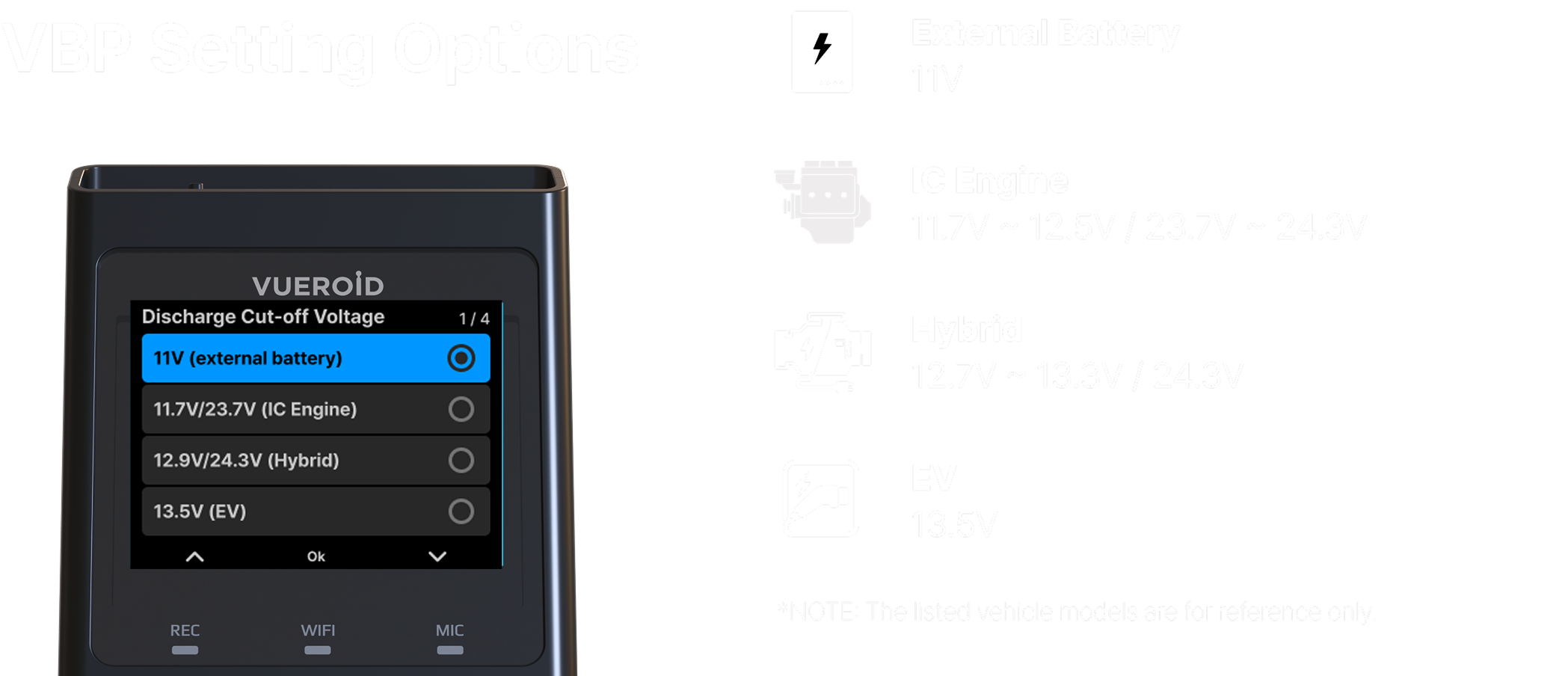
We offer a Vehicle Battery Protection mode. The Discharge Cut-off Voltage mode in the Vehicle Battery Protection setting will automatically turn off the device if the vehicle’s battery voltage falls below the specified threshold.
Additionally, the Discharge Cut-off Time mode will turn off the device once the set time has elapsed.
Q. Why won’t the device power on?
Please follow the steps below, and if the issue persists, please contact us.
Q. Why is GPS not connecting?
If you’re indoors or underground, your GPS signal may be blocked. Try moving outdoors for a better connection. Also, if you haven’t used GPS in a while, it may take longer than usual to establish a connection.
Bad weather or interference from other electronic devices can also disrupt the GPS signal.
Q. Why is the parking recording video not being saved?
Also, check the vehicle battery and electrical system, as unstable voltage from these can cause similar issues—professional inspection is recommended.
Q. Why is the CPL filter not functioning properly?
Ensure the CPL filter is firmly and securely attached, with no gaps or looseness, and perfectly aligned with the lens to avoid vignetting or image distortion.
The CPL filter is only effective in vehicles with untinted front windows. If the recorded footage is affected by glare or reflections, adjust the CPL filter by rotating it left or right until the image becomes clearer.

Q. How should I format the SD card?
There are two ways to format the SD card: one through the device and the other by connecting it to a PC.
Formatting the SD card directly within the dashcam is recommended. However, if the device doesn’t recognize the SD card or an error occurs, use a PC instead.
Setting Menu > System > SD Card Format > Select ‘Yes’
When formatting SD card on a PC, the file system must be set to FAT32, and the allocation unit size must be set to 32KB or larger.
However, SD cards larger than 64GB cannot be formatted to FAT32 on a PC. Therefore, even if the card is formatted on a PC, it will require reformatting when inserted into the device.
Kindly select ‘Yes’ when the device prompts you to format the SD card after inserting it.
Attention: When formatting an SD card on the device, the process may take longer, especially with larger-capacity cards. Do not turn off the power or interrupt the process until formatting is fully completed.
To ensure safe and stable operation, always allow the formatting and setup process to finish without interruption.
Q. I have never installed a dashcam before. Can I install the device myself?
As a first step, we recommend referring to the official installation guide video on our website.
Using the cigarette lighter socket to power the device is generally straightforward and involves no major complications. However, this method limits the use of the parking mode feature.
To enable parking mode, the dashcam must be connected to a constant power source through hardwiring. In this case, it is crucial to strictly follow the manual and understand your vehicle’s specific requirements.
Therefore, professional installation is recommended.
Also, it is your responsibility to be informed about and comply with the regulations and legal requirements of your state and country. We are not liable for any issues that arise from failure to adhere to applicable laws.
Q. Can I use an SD card other than the Genuine VUEROID SD card?
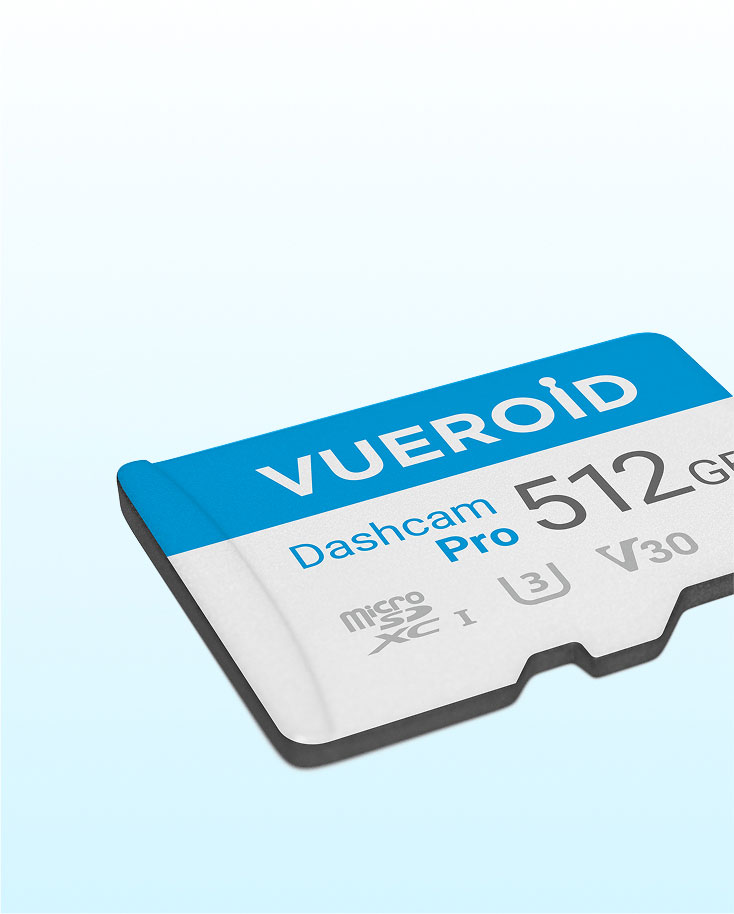
We strongly recommend using a Genuine VUEROID SD card, which comes with a 1-year warranty. VUEROID SD cards are specifically optimized for seamless compatibility with our devices.
While third-party SD cards may work, we cannot guarantee optimal performance, as they may slow down device operation.
Any resulting delay is not attributable to the device itself. We do not provide warranty coverage for issues resulting from the use of unofficial SD cards.
The following SD cards are compatible with the VUEROID S1 Infinite. However, please note that, except for the Vueroid Official Dashcam Pro SD Card series, stable performance under all environments cannot be guaranteed.
| No. | Product | 64GB | 128GB | 256GB | 512GB |
| 0 | VUEROID Dashcam Pro | O | O | O | O |
| 1 | Lexar E Series | O | O | O | O |
| 2 | SanDisk Extreme | O | O | O | O |
| 3 | SanDisk High Endurance | O | O | O | O |
Q. Where is the product serial number located?
The serial number can be found on the side of the front camera, at the point where it meets the mount. The serial number consists of a 10 character combination of numbers and letters, starting with ‘S1U2.’
Q. Can I change the SSID? I’m concerned about data security.
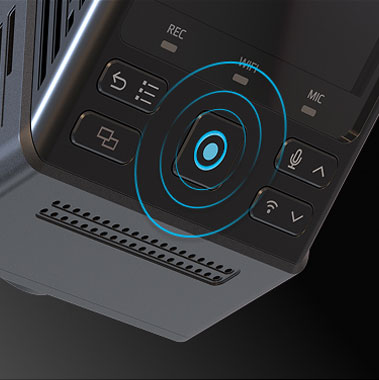
The SSID cannot be changed on VUEROID devices. However, there’s no need to worry—Wi-Fi connections must be manually approved by pressing the button on the device.
This means unauthorized users cannot connect or access your footage, even if they see the SSID.
Q. The video files are only 1 minute long. Can I extend the duration in the settings?
The video length is preset by our file system and cannot be extended.
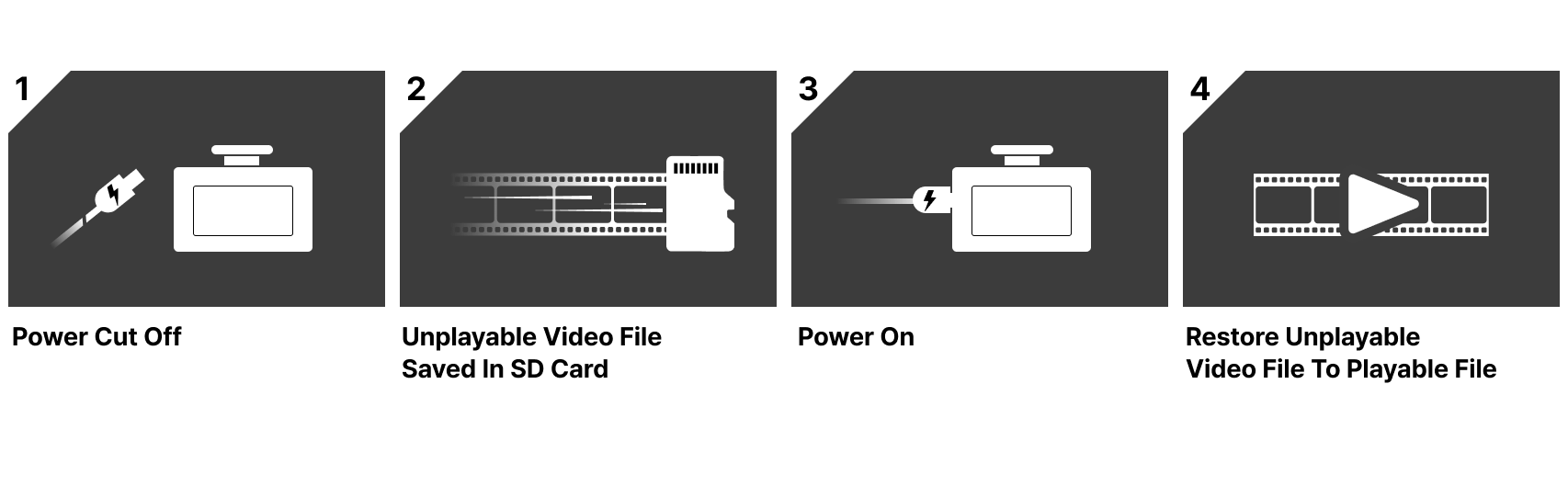
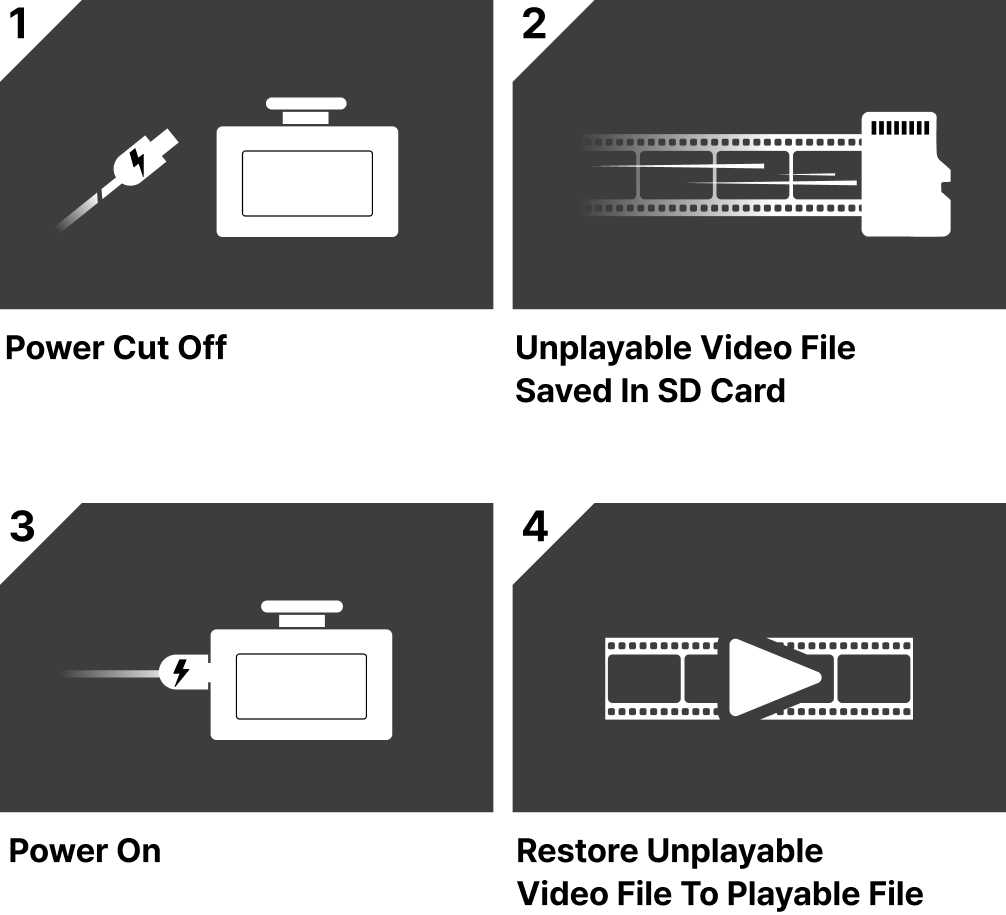
This design helps protect files in case the device is turned off unexpectedly and also contributes to prolonging the lifespan of the SD card.
Q. The time on the device is incorrect or not displayed.
This issue may occur if the GPS connection is unavailable or the RTC (Real-Time Clock) battery has been depleted. If you are indoors or underground, please go outside to an open area with a clear view of the sky.
Q. Are there any requirements for using the application?
OS: Android 10 (Q) or later / iOS 15.0 or later.
As long as your iOS/Android version is up to date, our application is compatible and can be downloaded on tablet PCs, including iPads and Tabs.
Q. What are Vueroid AI Features?
VUEROID offers two AI-powered features accessible through the VUEROID PC Viewer or mobile application:
The current AI model is optimized for U.S. license plates. Accuracy may vary for plates from other countries.
We recommend using the AI results for reference only and strongly encourage users to verify the output manually.
This requires cellular data, and upload speed may vary depending on your network and location.
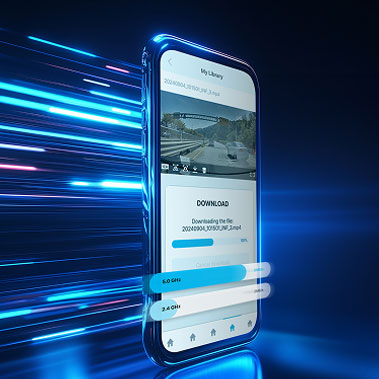
AI features are available only for footage recorded with the VUEROID S1 Infinite and must be used with videos that have been pre-downloaded to your phone.
Note: Please note that false positives may occur at any time.
However, even if only one or two digits are correctly recognized, we believe they can still aid in identifying the vehicle—such as its make, model year, or color—using the recorded footage.
Q. How do I connect to the VUEROID Hub App?
Q. How do I use the AI Privacy Protection Feature?
Note: Due to the high resolution of 4K video, uploading may take a significant amount of time and consume considerable data. Please ensure you have a stable internet connection before proceeding.
Q. How do I use the AI License Restoration Feature?
Note: The AI is not trained to process plates that are already clearly readable by human eye. Attempting to enhance such plates may result in poor or inaccurate restoration results.
Please do the following steps.
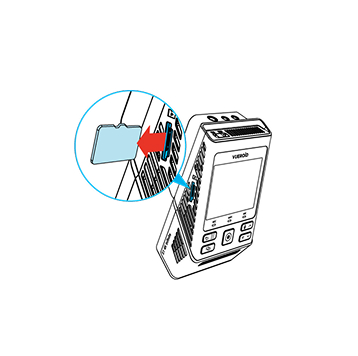
Turn off the unit and remove Micro SD Card. Insert it into your computer.

Download the latest firmware.
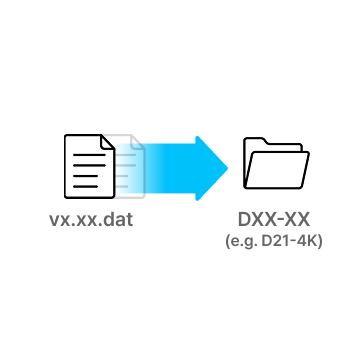
Unzip the firmware file and copy the .DAT file to the root directory of SD Card.
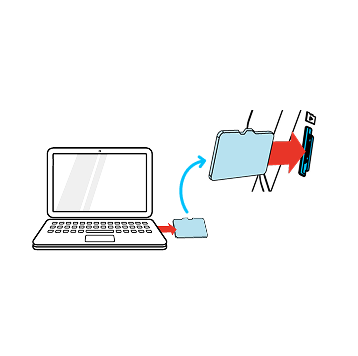
Eject Micro SD Card from computer and insert it into the device.
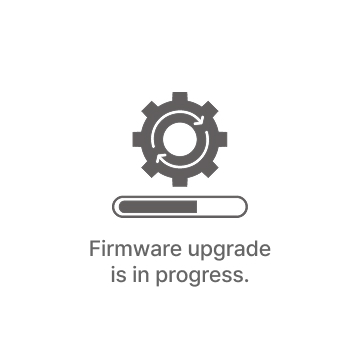
Turn on the device. The firmware upgrade will start automatically.
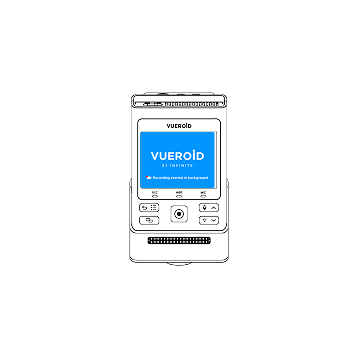
Once the firmware upgrade is complete, the device will automatically restart. You can then continue using the device.
*Firmware updates are available via the VUEROID HUB App and are processed automatically once the device is connected.
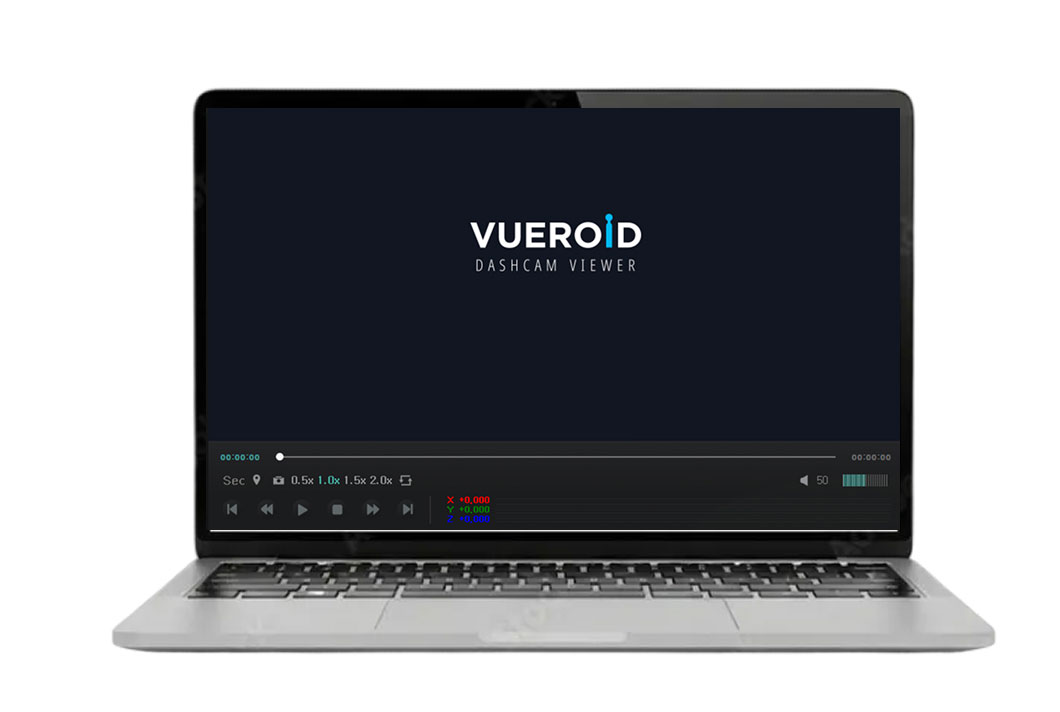
For S1


For D40, D21, D20, D10
![S1 4K Infinite 1 CH [with Option]](https://vueroid.com/wp-content/uploads/2026/04/S1_4K-_1CH.jpg) S1 4K Infinite 1 CH [with Option]
S1 4K Infinite 1 CH [with Option]
| 5 star | 0% | |
| 4 star | 0% | |
| 3 star | 0% | |
| 2 star | 0% | |
| 1 star | 0% |
Sorry, no reviews match your current selections






![VUEROID DASHCAM: Introduce D21 4K [Full Ver.]](https://img.youtube.com/vi/OxaYcXw_ZiQ/mqdefault.jpg)
![[VUEROID D21 LTE FHD] 04. How to Register your device to the cloud via SIM card](https://img.youtube.com/vi/7jYPSCIc0oY/mqdefault.jpg)
![[VUEROID D21 LTE FHD] 03. How to Register your device to the cloud via Hotspot](https://img.youtube.com/vi/AVerlan2myU/mqdefault.jpg)
![[VUEROID D21 LTE FHD] 02. How to Sign up Cloud Account](https://img.youtube.com/vi/SxznSFs3Ve0/mqdefault.jpg)
![[VUEROID D21 LTE FHD] 01. How to connect Cloud App via Wi Fi](https://img.youtube.com/vi/lAx3PNIiQKg/mqdefault.jpg)