
VUEROID PC Viewer
Firmware Update Instructions
- Turn off the main unit and remove the Micro SD card from the unit.
- Insert the Micro SD card into your computer.
- Download the latest firmware.
- Unzip the firmware file and copy the .DAT file to the root directory of the SD card.
*Please do not place the file inside any folder. - Safely eject the Micro SD card from the computer.
- While the main unit is powered off, insert the Micro SD card correctly into the device.
- Turn on the device. The firmware upgrade will start automatically.
- Once the firmware upgrade is completed, the device will automatically restart to finish the update.
*Do not turn off the power or remove the SD card during the update.
Q. How do I connect the power to Vueroid Dashcam?
You have two options available;
Using 12v cigar cable and connect from external cigar socket to DC-IN power port of your Vueroid dashcam.
* With cigar cable you won’t be able to use the parking mode.
Using a hardwiring cable and connect from accessories power from the fuse panel of your vehicle.
Q. Will parking mode drain my car battery?
Dashcams with a battery protection feature will shut off before your car battery reaches a critical level. Using an external dashcam battery can prevent battery drain.
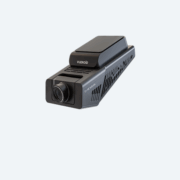
VUEROID Dashcam : D10-F2W Day-time driving
VUEROID Dashcam : D10-F2W Night-time driving


