

Please review and complete the steps below before permanently mounting your H1 QHD in your vehicle.
These quick checks will help you get started smoothly.
1. Insert the SD Card Before Powering On

Insert a compatible microSD card into the H1 QHD before connecting power.
*We recommend a card with a capacity of 256GB or higher.
For more details, please refer to:
http://vueroid.com/blog/recommend-sd-card-s1-4k/
2-1. Complete the Initial Setup - Driving Only
Choose the setup that matches how you plan to use your H1 QHD.
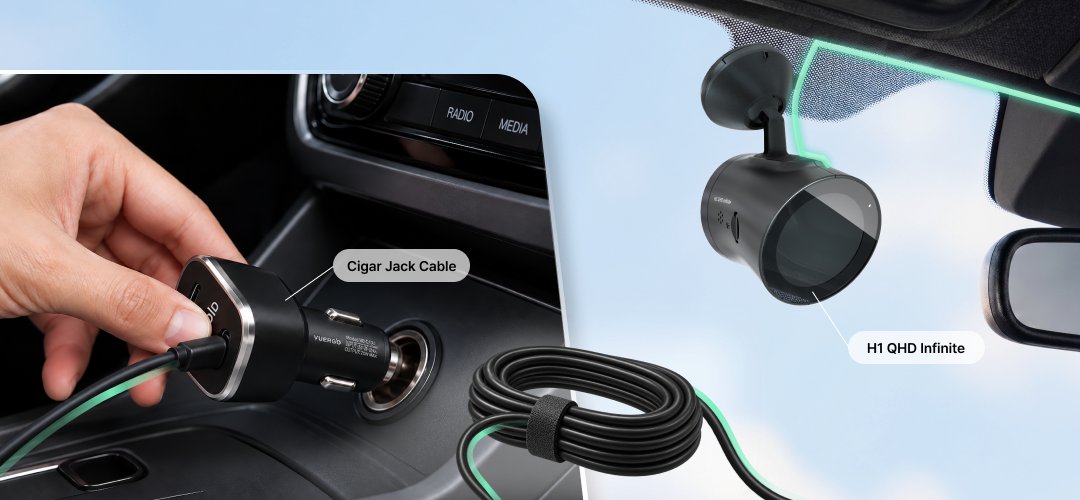
[Driving Recording Only]
- Connect the camera using the USB-C cable and car charger included in the package.
- Turn on the camera and follow the on-screen initial setup.
- When asked, “Would you like to continue using the Parking Recording feature?”, select No.
- Memory Allocation will be set to Drive Only.
2-2. Complete the Initial Setup - Parking Recording without Hardwire Kit

[Parking Recording Without a Hardwire Kit]
To use Parking Recording without a Hardwire Kit, you need a compatible external battery pack that keeps the camera powered while your vehicle is parked.
- Connect the camera to the external battery pack using a USB-C cable.
- Turn on the camera and follow the on-screen initial setup.
- When asked, “Would you like to continue using the Parking Recording feature?”, select Yes.
- Memory Allocation will be set to Drive Priority, and Auto Parking Recording will turn On.
* Vehicle battery monitoring and low-voltage cutoff are unavailable with this setup.
2-3. Complete the Initial Setup - Parking Recording with Hardwire Kit

[Parking Recording With a Hardwire Kit]
This setup requires the optional VUEROID Hardwire Kit. Install and connect the kit before starting the camera’s initial setup.
- Connect the camera to the installed VUEROID Hardwire Kit.
- Turn on the camera and follow the on-screen initial setup.
- When the Hardwire Kit is detected, the Parking Video Enhancing menu will appear.
- Select Normal, HDR, or Premium Night Vision, then confirm your choice.
- Memory Allocation will be set to Drive Priority, and Auto Parking Recording will turn On.
>>> Watch Hardwire Cable Installation Guide
>>> Watch Hardwire Kit User Guide
3. Connect to the App and Check the Firmware
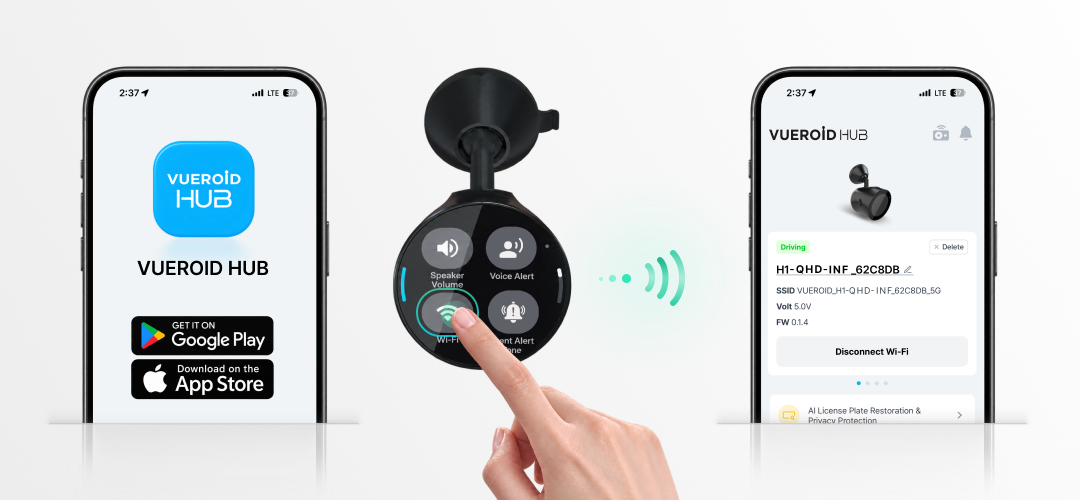
- On your phone, download VUEROID HUB from the Google Play Store or Apple App Store.
- Turn on Bluetooth and Wi-Fi, then open the app.
- On the H1 QHD touchscreen, swipe from right to left to open the Quick Menu.
- Tap the Wi-Fi icon to turn on the dash cam’s Wi-Fi.
- Return to VUEROID HUB on your phone. Tap Find Devices and select your H1 QHD from the list.
- When a Wi-Fi access request appears on the dash cam, accept it.
- Once connected, VUEROID HUB will automatically notify you if a firmware update is available. Follow the in-app instructions and keep the dash cam powered on until the update is complete.
4. Mount and Adjust the Camera
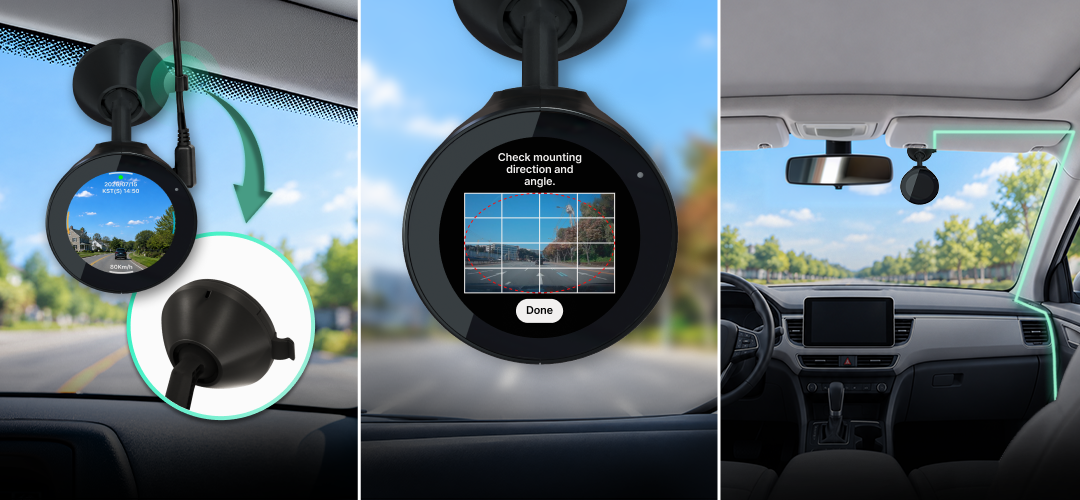
- Choose a spot with a clear road view. Keep the cable retainer on the right, then clean the mounting surface with a dry cloth.
- Remove the film from the adhesive mount and press it firmly into place.
- Adjust the angle using the on-screen guide, then tap Done. You can also use Guide in the VUEROID HUB app’s Live View.
- Route the power cable along the vehicle’s trim using the included trim tool.