



Firmware Update Instructions
1
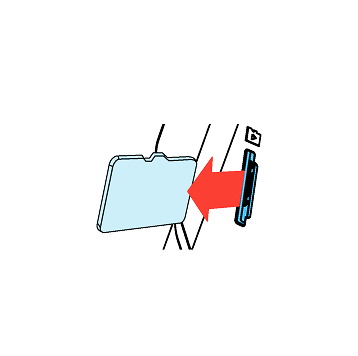
Turn off the unit and remove Micro SD Card. Insert it into your computer.

2
Download the latest firmware.
3
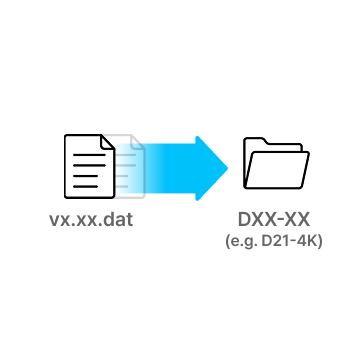
Unzip the firmware file and copy the .DAT file to the root directory of SD Card.
4
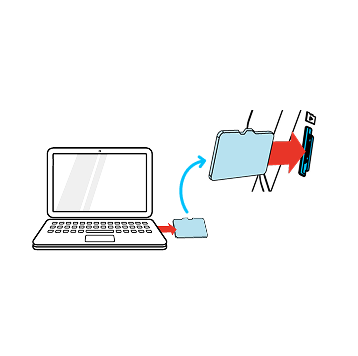
Eject Micro SD Card from computer and insert it into the device.
5
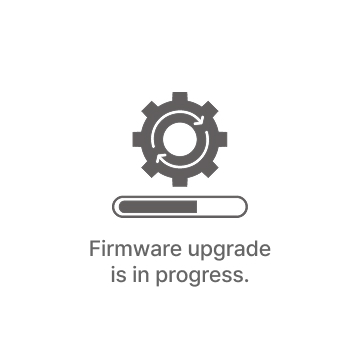
Turn on the device.
The firmware upgrade will start automatically.

6
Once the firmware upgrade is complete, the device will automatically restart. You can then continue using the device.
*Firmware updates are available via the VUEROID App and are processed automatically once the device is connected.
Firmware Update Notes (v1.13)
- Added Multi-Language Voice Packs
- Added Smart Low Power Mode
- Added Parking Recording Delay Mode (No Delay/ 90 Sec/ 3 Min)
- Added Auto REC Off Zone (Geofence-Based)
- Improved HDR Timer
- Improved speaker volume level
- Added Support for Automatic SD Card Formatting
Firmware Update Notes (v1.13)
- Added Multi-Language Voice Packs
- Added Smart Low Power Mode
- Added Parking Recording Delay Mode (No Delay/ 90 Sec/ 3 Min)
- Improved HDR Timer
- Improved speaker volume level
- Added Support for Automatic SD Card Formatting
Firmware Update Notes (v1.13)
- Added Multi-Language Voice Packs
- Added Smart Low Power Mode
- Added Parking Recording Delay Mode (No Delay/ 90 Sec/ 3 Min)
- Improved HDR Timer
- Improved speaker volume level
- Added Support for Automatic SD Card Formatting
Q. How to connect the dashcam Wi-Fi?
- Search “Vueroid Dashcam” on the App Store (iPhone), Play Store (Android) then install it.
- Turn on the “Wi-Fi” button on the dashcam. Then it shows a SSID (VUEROID_DXX_XX_XXXXXX) on the list of Wi-Fi network.
- Tap on ” OK” once the pop-up screen is shown and it says “Connect to device.”
- You’ll be greeted by a SSID in the form of VUEROID_DXX_XX_XXXXXX in a given Wi-Fi network listing.
- Tap on that SSID and type the password (Default PW is “12345678”)
Q. How to change the Wi-Fi password?
- Enter the setting menu via either Wi-Fi App or dashcam’s LCD setting menu.
- Enter “System” then click on “Change Wi-Fi Password.” Then the dashcam will begin the formatting.
- Enter the current password then enter the new password to reset.
Q. What is the different between D20-F2 and D20-F2E?
The only difference between the two models is GPS functionality. The D20-F2 includes built-in GPS, while the D20-F2E does not have GPS. Since the D20-F2E does not have GPS, it does not support tracking driving history or ADAS (Advanced Driver Assistance System) features.
VUEROID Dashcam : D20 Unboxing Video
VUEROID Dashcam: Installation
VUEROID Dashcam : App Tutorial