Before Installation for S1 4K Infinite
This guide will help you with the initial device setup for the S1 4K Infinite.
Before installing the product in your vehicle, power on the device using either the cigarette lighter power cable or a USB C to C cable, and complete the initial setup by following the steps below.
1. SD Card
Please insert the SD card into the device first.
For 4K models, an SD card with 256GB or higher is recommended.
For more details, please refer to:
https://vueroid.com/blog/recommend-sd-card-s1-4k/
2. Rear Camera & Interior Camera Connection
The S1 is a dashcam that supports up to 3 channels (3CH) and is equipped with three dedicated ports.
Each port has a specific function, so please check the port assignments before connecting any cables.
- R-CAM Port: Rear camera
- IN-CAM Port: Interior camera
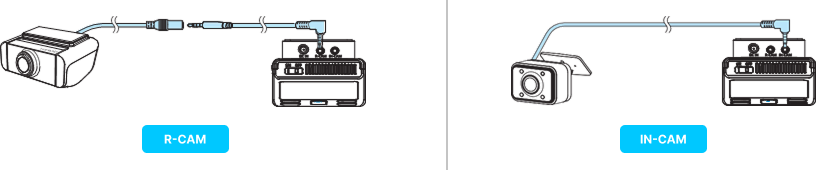
※ We recommend connecting all cameras you plan to use before completing the setup.
While connecting or disconnecting camera cables during use will not affect normal operation, changing the channels of cameras may require SD card formatting.
3. Initial Setting
* How to Control Device

Once the device is powered on, the initial setup process will begin. You may choose to skip it, in which case VUEROID’s recommended settings will be applied automatically.
If the Resolution & Frame Rate in the initial settings are set to 4K 60fps or QHD 60fps, HDR and HDR+ Infinite Plate Capture cannot be enabled, and Video Enhancing Mode will automatically be set to Normal.
For more stable night-time image quality, VUEROID recommends using a 30fps frame rate.
※ If additional setup or changes are needed, various settings can be configured through the Settings menu.
4. Firmware
Please update the firmware.
Firmware updates can be performed via:
- VUEROID HUB (Download App from app store or Google Playstore)
- PC
[Important]
Please allow all permissions requested by the app.
If Apple CarPlay or Android Auto is connected to your phone, app functionality may be limited.
* The VUEROID HUB app requires the following operating systems: Android 10 (Q) or later iOS 15.0 or later
* Please make sure that any VPN connections are turned off, as they may interfere with the app’s operation.
5. Setting Power Off Voltage (Formerly Battery cut-off voltage)
Power Off Voltage (Formerly Battery cut-off voltage) may vary depending on the vehicle type.
Please adjust the setting according to your vehicle.
(Menu > Parking Recording > Vehicle Battery Protection > Discharge Power Off Voltage (Formerly Cut-off Voltage))
※ Recommended Power Off Voltage (Battery cut-off voltage):
- External battery: 11V
- Internal combustion engine (ICE) vehicles: 12V or higher
- Hybrid vehicles: 12.7V or higher
- Electric vehicles (EV): 13.5V or higher
6. Adjusting the Camera Angle
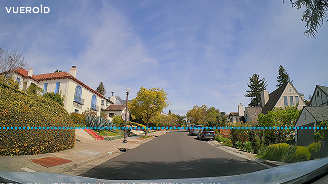
Once the device setup and firmware updates are complete, to achieve optimal image quality, please adjust the camera angle so that the horizon occupies approximately 25–30% of the screen.
* You can check the guidelines using the Guide button in the Liveview on the Vueroid HUB App.
7. Furthermore..
You can receive an additional 6 months of warranty by registering your product.
Please click the link below to complete the registration – it only takes a moment.
https://vueroid.com/support/product-registration/
If you have any other questions about the product, please refer to the FAQ for your specific purchased product on the VUEROID website, or check the User Manual on the official VUEROID YouTube channel. If the issue is still not resolved, please submit an inquiry through Submit a Ticket on the official VUEROID website.
- FAQ: https://vueroid.com/blog/product-support/s1-4k-infinite-2ch/#faq
- User Manual (Youtube): https://www.youtube.com/@VUEROID/videos
- Submit Ticket: https://vueroid.com/support/submit-a-ticket/