



Firmware Update Instructions
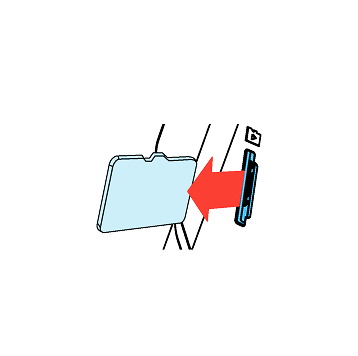
1
Turn off the unit and remove Micro SD Card. Insert it into your computer.

2
Download the latest firmware.
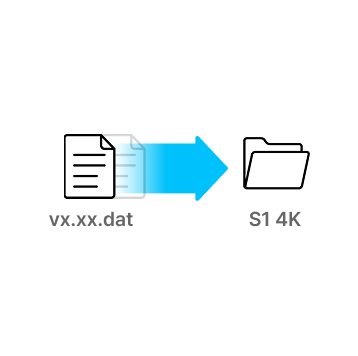
3
Unzip the firmware file and copy the .DAT file to the root directory of SD Card.
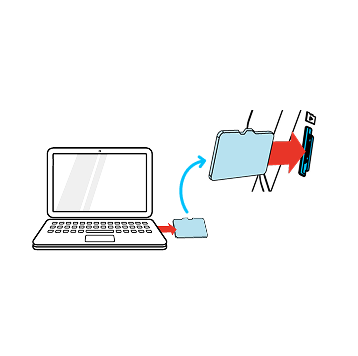
4
Eject Micro SD Card from computer and insert it into the device.
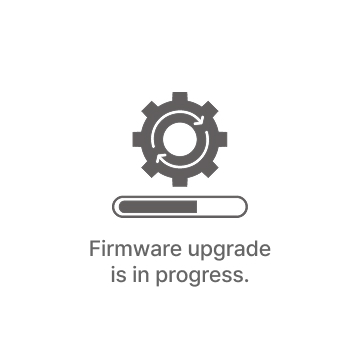
5
Turn on the device.
The firmware upgrade will start automatically.

6
Once the firmware upgrade is complete, the device will automatically restart. You can then continue using the device.
*Firmware updates are available via the VUEROID App and are processed automatically once the device is connected.
Q. What is the maximum SD card capacity supported?
We support up to 256GB.
Q. Can I install the dashcam on vehicles with a nearly vertical windshield, like a Jeep?
Yes, you can! The VUEROID D21 4K features an adjustable lens that can be tilted up or down. After mounting the dashcam, simply adjust the lens angle to ensure a clear and optimal view of the road.
Q. How to format memory card?
Press Voice and Wi-Fi buttons simultaneously for more than 3 seconds.
1. How to connect Cloud App via Wi Fi
2. How to Sign up Cloud Account
3. How to Register your device to the cloud via Hotspot
4. How to Register your device to the cloud via SIM card